

Developers
How to generate QR codes in Google Sheets
By OpenQR · updated 30 June 2026
A spreadsheet is where most QR jobs actually start: a column of URLs, vCards or asset tags, and a need for one code next to each. This guide shows how to turn that column into QR codes with the free OpenQR API — first the =IMAGE() formula everyone reaches for (and the honest reason it falls short for a key-gated API), then a small Google Apps Script that does the job properly: one code per row, key kept secret, images written into the sheet or to Drive.
8 min read · Updated 30 June 2026
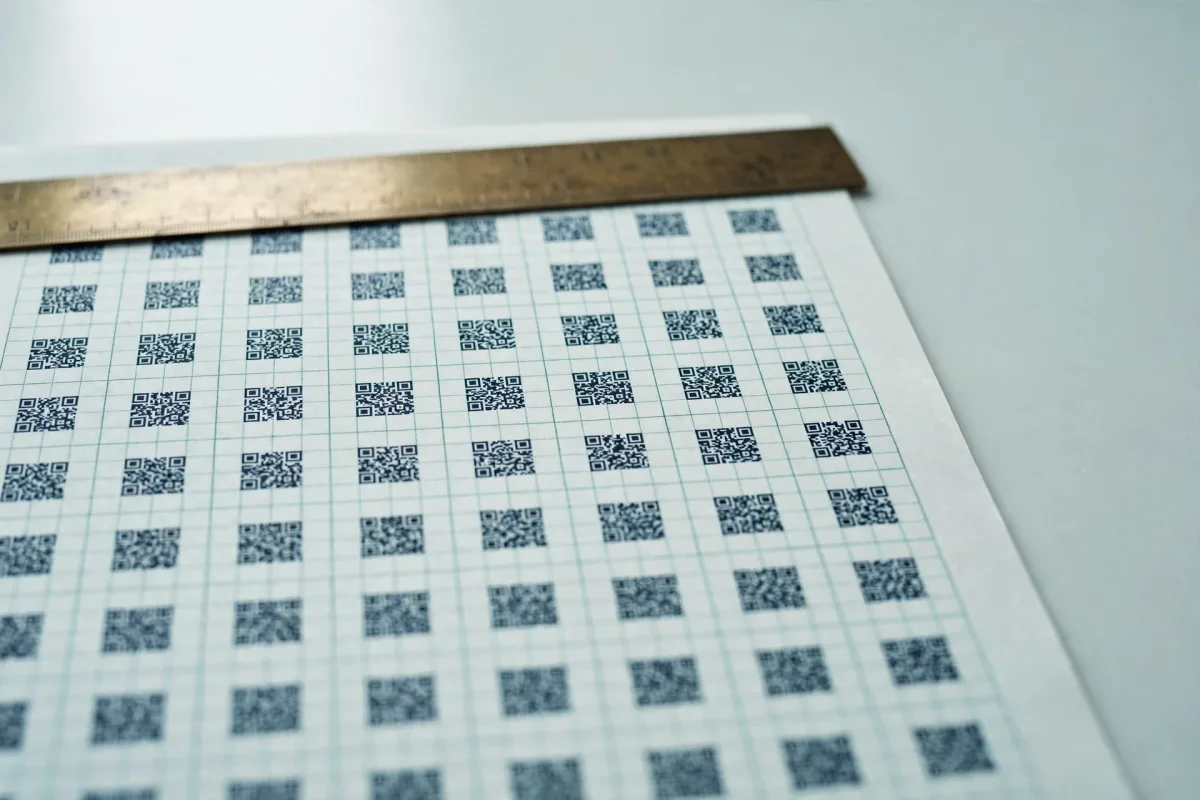
Before anything else you need a key. The OpenQR API is free but key-gated: go to openqr.uk/api, sign in with a magic link (enter your email, click the link — no password), and create a key in the dashboard. It is shown once and looks like oqr_…; copy it somewhere safe. Every request authenticates with that key as a bearer token. If you are new to the API, the getting-started guide covers the /v1/qr endpoint in full.
The two approaches, honestly
There are two ways to get QR codes into a Google Sheet, and they are not equal. The built-in =IMAGE() formula is the obvious first thought, but it has a hard limitation that matters here: it cannot send an Authorization header. Apps Script is the approach that works for a key-gated API.
| =IMAGE() formula | Apps Script | |
|---|---|---|
| Can send an Authorization header? | No | Yes (UrlFetchApp) |
| Where the key lives | In the cell URL (exposed) | Script Properties (hidden) |
| Setup effort | One formula | A few lines of code, once |
| Good for | Understanding the URL shape | Anything real — one code per row, Drive export |
Why =IMAGE() alone can't call this API
Google Sheets has a native =IMAGE(url) function that fetches an image from a URL and renders it in the cell. It is genuinely the simplest way to show a remote image, and the natural instinct is to point it at /v1/qr. You would build the URL from a cell value like this:
=IMAGE("https://openqr.uk/v1/qr?format=png&size=300&data=" & ENCODEURL(A2))ENCODEURL(A2) percent-encodes the cell value so spaces and symbols survive in the query string, and & concatenates it onto the base URL. The logic is sound — and this is a useful mental model for how the GET endpoint works. The problem is authentication. =IMAGE() issues a plain image fetch with no way to attach an Authorization header, and the OpenQR API requires Authorization: Bearer oqr_… on every request. So the formula above gets a 401 and shows a broken image, not a QR code.
Don't try to smuggle the key into the URL
The API expects the key in a header, not the query string — and putting a secret in a cell formula is a bad idea regardless: anyone with view access to the sheet can read it, and shared/exported copies carry it with them. There is no public, no-auth image URL to fall back on. Keep the key out of cells entirely and use Apps Script, where it can travel as a header and live in Script Properties.
So treat =IMAGE() as the way to understand the endpoint, not the way to ship. For anything real, the next section is the route.
The robust way: Google Apps Script
Apps Script is the JavaScript runtime built into every Google Sheet (Extensions → Apps Script). Unlike a cell formula, its UrlFetchApp.fetch() can send custom headers — including the bearer token — and it can read the raw image bytes back and place them in the sheet or save them to Drive. It also gives you a proper place to store the key: PropertiesService.getScriptProperties(), which is bound to the script and never visible in a cell.
Step 1 — store your key, once
Run this function once to save your key into Script Properties, then delete the literal key from the code. After this, nothing in your sheet or script source contains the secret.
// Run ONCE, then remove your key from this function.
function saveKey() {
  PropertiesService.getScriptProperties()
    .setProperty("OPENQR_KEY", "oqr_your_key_here");
}
Step 2 — fetch a QR as a blob
A small helper calls /v1/qr with the data to encode, sends the key as a header, and returns the image as a Blob. Request PNG here — Sheets and Drive both want a raster image to display or store. muteHttpExceptions: true lets you read the error body (the API returns { "error": "…" } on failure) instead of throwing on a non-200.
function qrBlob(data, size) {
  const key = PropertiesService.getScriptProperties().getProperty("OPENQR_KEY");
  if (!key) throw new Error("No OPENQR_KEY set — run saveKey() first.");

  const url =
    "https://openqr.uk/v1/qr?format=png" +
    "&size=" + (size || 512) +
    "&data=" + encodeURIComponent(data);

  const res = UrlFetchApp.fetch(url, {
    headers: { Authorization: "Bearer " + key },
    muteHttpExceptions: true,
  });

  const code = res.getResponseCode();
  if (code !== 200) {
    throw new Error("OpenQR " + code + ": " + res.getContentText());
  }
  return res.getBlob().setName("qr-" + data.slice(0, 24) + ".png");
}
Step 3 — a code per row, over the cells
This reads column A (the data to encode — a URL, a vCard, plain text) from row 2 down, renders a QR for each, and drops the image over the matching cell in column B using CellImageBuilder. Add a menu item so you can run it from the toolbar without opening the editor.
// Adds a "QR Codes" menu when the sheet opens.
function onOpen() {
  SpreadsheetApp.getUi()
    .createMenu("QR Codes")
    .addItem("Generate from column A", "generateColumn")
    .addToUi();
}

function generateColumn() {
  const sheet = SpreadsheetApp.getActiveSheet();
  const last = sheet.getLastRow();
  if (last < 2) return;

  // A2:A<last> holds the data; B is where the QR lands.
  const values = sheet.getRange(2, 1, last - 1, 1).getValues();

  values.forEach(function (row, i) {
    const data = String(row[0]).trim();
    if (!data) return;

    const blob = qrBlob(data, 512);
    const cellImage = SpreadsheetApp.newCellImage()
      .setSourceUrl("data:image/png;base64," + Utilities.base64Encode(blob.getBytes()))
      .setAltTextTitle("QR for " + data)
      .build();

    sheet.getRange(i + 2, 2).setValue(cellImage);
  });

  SpreadsheetApp.getActive().toast("Done — QR codes in column B.");
}
In-cell images vs Drive files
Placing images in cells (above) is perfect for a working sheet you scan from a screen. If you need printable files — name badges, asset labels, a folder to hand to a designer — write each blob to Drive instead with DriveApp.createFile(blob) and store the resulting file URL in the row. One row in, one PNG out.
Variant — save each QR to Google Drive
If you would rather end up with a folder of PNGs (one per row) than images glued into cells, swap the per-row body for this. It creates a folder, writes a file per row, and records the shareable link back in column B.
function generateToDrive() {
  const sheet = SpreadsheetApp.getActiveSheet();
  const last = sheet.getLastRow();
  if (last < 2) return;

  const folder = DriveApp.createFolder("QR codes " + new Date().toISOString().slice(0, 10));
  const values = sheet.getRange(2, 1, last - 1, 1).getValues();

  values.forEach(function (row, i) {
    const data = String(row[0]).trim();
    if (!data) return;

    const file = folder.createFile(qrBlob(data, 1024)); // 1024px prints cleanly
    sheet.getRange(i + 2, 2).setValue(file.getUrl());
  });

  SpreadsheetApp.getActive().toast("Saved to Drive folder: " + folder.getName());
}
What to encode in each row
The data parameter takes any text up to 2000 characters, so a row can encode far more than a plain link. A few patterns that map naturally to a spreadsheet, one entity per row:
- Event check-in / name badges — a column of attendee profile URLs, or a vCard string per person, becomes a scannable badge each.
- Asset and equipment tags — one URL per machine, room or shelf that opens its manual or maintenance log.
- Product or menu items — a code per SKU or dish linking to its live page.
- Wi-Fi, vCards and plain text — anything you can express as a string fits; the API just encodes whatever you send.
These are static codes
/v1/qr produces static QR codes — the data is baked into the image, so they never expire and need no server to resolve, but you can't change where one points after it's printed. If you need to repoint a code later (or count scans), you want dynamic codes — see the dynamic codes API guide.
When to graduate from the sheet
Apps Script in a spreadsheet is ideal up to a few hundred rows. Beyond that, or when the codes need to be editable and trackable after printing, a sheet stops being the right home. Three natural next steps:
- True bulk, server-side — for hundreds of dynamic codes with folders and a print-ready label map, run it as a proper script against the bulk endpoint. See bulk QR code generation.
- Editable, trackable codes — if you need to repoint a printed code or read scan counts, use dynamic codes instead of the static images above.
- No-code automation — to trigger generation from other apps without writing scripts, wire it through Zapier or Make.
For the full list of ways to drive the API, see the integrations page. Everything above is free with an account — the pricing page has the details.
Get your free API keySign in with a magic link, create a key, and paste it into Apps Script — free, no card.