

Troubleshooting
Why is my QR code not scanning? A complete troubleshooting guide
By OpenQR · updated 5 August 2026
A QR code that will not scan almost always fails for one of eight reasons, and the commonest is size: a code scanned from more than about ten times its own width away cannot resolve. Work the causes down in order of how often each is the culprit: size, quiet zone, contrast, resolution, glare, logo, damage, dead link. Every section below names the cause and its fix, and the checklist at the end covers the lot before you print.
8 min read · Updated 5 August 2026
First: which problem are you having?
QR-code failures fall into a few distinct buckets, and the fix is different for each, so narrow it down before working through the fault-tree below:
- No code scans on your phone at all: the camera never reacts, whatever the code. That points to a device setting rather than the code itself, so see the fixes for iPhone or Android.
- The camera reads it but shows “No usable data found”: a specific iPhone message with its own cause and fix. See resolving “No usable data found”.
- One particular code won't scan while others do. The fault is in that code or its printout, so work down the fault-tree below.
- It only fails once printed: almost always size, resolution, glare or a lost quiet zone. See why QR codes fail in print.
- A code you used to be able to edit or track suddenly stopped: that's a dynamic code whose redirect has lapsed. See fixing a dynamic QR code.
Start here: scan it on screen first
Before blaming the print, open the original digital file full-size on a monitor and scan it from there. If it scans cleanly on screen but not in print, the problem is physical — size, resolution, glare or damage. If it fails on screen too, the problem is in the code itself — contrast, an oversized logo, or a dead destination. This one test cuts the search in half. The free QR code scanner does this test with you: it decodes a photo or screenshot in your browser and reports the version, module count and error-correction level that explain how hard the code is working to be read.
1. The code is too small
The single most common cause. A QR code has a minimum legible size relative to how far away it is scanned. A reliable rule of thumb is 10:1 — the scan distance should be no more than about ten times the width of the code. A code scanned from one metre away therefore needs to be at least around 10 cm wide. On a poster read from across a room, that means a much larger code than people expect.
More data also makes a denser grid, which needs to be physically larger to stay readable. For exact sizing per medium, see our guide to QR code size for print.
2. No quiet zone
QR codes need a clear margin of empty space around them — the quiet zone — so scanners can tell where the code begins and ends. The standard calls for at least four modules (four “squares” wide) of blank space on every side. Crop the code tight, butt it against text or a border, or place it over a busy background and many scanners simply give up.
The most-missed fix
If your code worked as a file but stopped after being placed into a design, a missing quiet zone is the usual reason. Restore at least four modules of clear margin on all four sides.
3. Poor contrast or inverted colours
Scanners rely on a strong difference between the dark modules and the light background. Light-grey-on-white, pastel-on-pastel, or two similar tones will fail. Keep it high-contrast: dark code on a light background is safest.
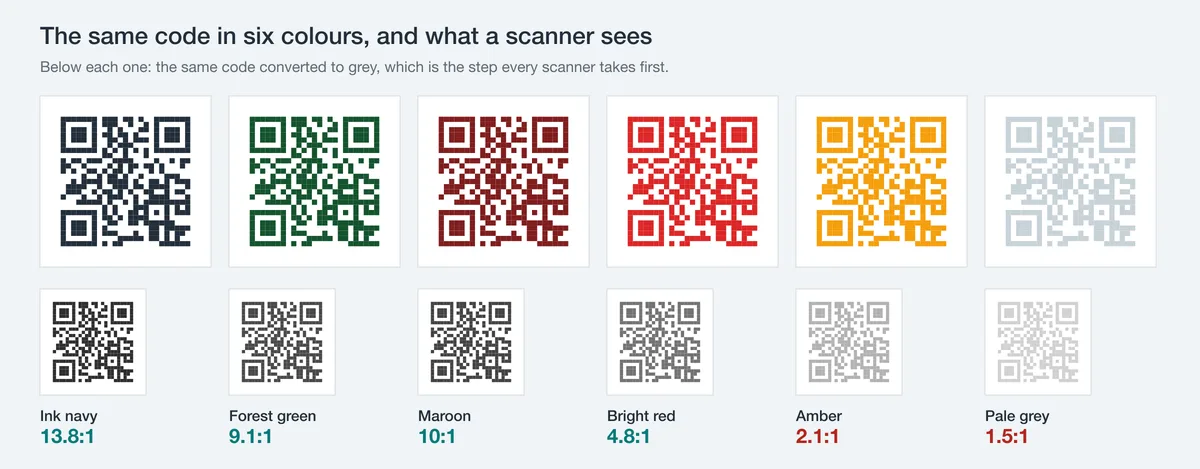
Critically, do not invert the colours. A light code on a dark background breaks many scanners, which expect dark modules on light. If you want a dark look, keep the modules dark and the background light, not the reverse.
4. Low resolution or blur
A QR code saved at low resolution, then enlarged for print, turns into soft, fuzzy edges that scanners cannot resolve into clean squares. Export at high resolution, or better, use a vector format that scales without any loss of sharpness. Our PNG vs SVG vs PDF guide explains when to use each — for print, SVG or a high-DPI PNG is the right call.
5. Gloss, glare and reflection
A perfectly good code can be unreadable under a shiny laminate, on a glossy menu, or behind reflective glass, because the camera sees a wash of light instead of the pattern. Where you can, use a matte finish for printed codes. On screens, dim reflections and avoid placing a code where overhead light bounces straight back at the camera.
6. The logo is too big
Adding a logo is fine within limits. QR error correction (levels L, M, Q and H, nominally recovering 7%, 15%, 25% and 30% of the data) tolerates some obstruction, but recovery is counted in lost data codewords, not in area, so the area a code survives is much smaller than the percentage suggests. OpenQR measured it: at level H a centred logo still scanned at 12% of the code's area and failed at 14%. Keep a logo centred and inside that measured ceiling, set error correction to Q or H, and test-scan before printing. See adding a logo properly for the safe limits.
The measured limit for logos
Keep any logo or overlay under 12% of the code's area (the measured ceiling at level H), centred, with error correction set to Q or H. The margin between reading and failing was two points of area, so test-scan rather than trust the estimate.
7. Physical damage
Folds, creases, scratches, ink smudges or a missing corner can push damage past what error correction can repair. Measured by blanking a growing patch and re-decoding, codes at levels L, M, Q and H survived 3%, 6%, 12% and 15% of their area obscured, all below the nominal recovery percentages. Protect the three large finder patterns above all: error correction does not cover them, and a scanner that cannot lock on cannot read the code at all. Reprint damaged codes rather than trying to salvage them.
8. The link itself is broken
Sometimes the code scans perfectly — and then leads nowhere. The destination URL may have a typo, the page may have moved, or, if it was a dynamic code, the redirect behind it may have lapsed. Decode the code and open the raw link in a browser to confirm it actually resolves. (Static codes made with OpenQR encode your link directly and have no redirect to break.)
| Symptom | Likely cause | Fix |
|---|---|---|
| Fails at distance, works up close | Too small | Enlarge using the 10:1 rule |
| Worked as a file, fails in a layout | No quiet zone | Add 4+ modules of margin |
| Never locks on, no read | Low contrast / inverted | Dark code on light background |
| Edges look fuzzy | Low resolution | Export high-res or use SVG |
| Fails under light, fine in shade | Gloss / glare | Use matte finish, reduce reflection |
| Stopped after branding added | Logo too big | Shrink the logo under 12% of the code area, raise error correction |
| Was fine, now patchy | Physical damage | Reprint the code |
| Scans but goes nowhere | Broken / expired link | Check the URL resolves |
Pre-print checklist
- Code is large enough for the scan distance (10:1 rule).
- Quiet zone of at least four modules on all sides.
- High contrast — dark modules on a light background, not inverted.
- Exported at high resolution or as a vector for print.
- Any logo is small, centred, with Q or H error correction.
- Finish is matte where glare is a risk.
- The destination link has been opened and confirmed working.
- Test-scanned with at least two different phones before going to print.
If you are on the scanning side rather than the printing side, our guide to scanning a QR code covers the device-end fixes too.
Generate a clean, high-resolution QR codeFree, watermark-free static codes with proper quiet zones — export as SVG or high-DPI PNG.