

Troubleshooting
QR code not working on iPhone? Here's how to fix it
By OpenQR · updated 7 September 2026
An iPhone can read QR codes straight from the stock Camera app, and has been able to since iOS 11 — you don't need to download a scanner. So when a code refuses to work, the fault is nearly always one of a handful of iPhone-specific things: QR scanning is switched off in Settings, the code isn't filling enough of the frame, a Focus mode is hiding the notification banner, or Screen Time is blocking the link once it opens. This guide walks through each in order, from most to least common, so you can get scanning again in a couple of minutes.
7 min read · Updated 7 September 2026
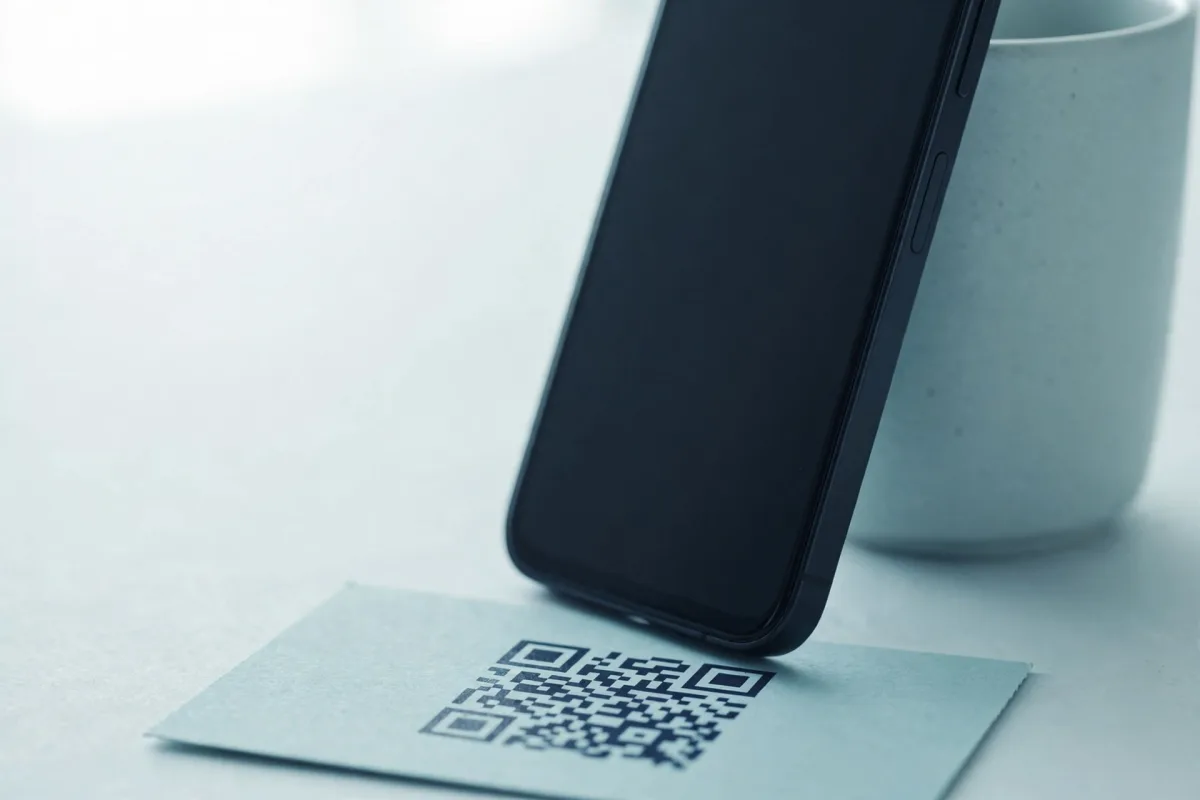
First: your iPhone doesn't need a QR app
Every iPhone running iOS 11 or later reads QR codes natively through the built-in Camera app. If you've installed a separate “QR scanner” app, you can delete it — the stock camera is faster and more reliable. Open Camera, point it at the code (rear camera, not selfie), hold steady, and a yellow notification banner should pop up with the link. Tap it. If nothing appears, work down the list below.
1. Turn on QR code scanning in Settings
There's a dedicated switch for this, and if it's off the camera simply won't react to codes. Go to Settings → Camera and make sure Scan QR Codes is toggled on. It's on by default, but a restore, a shared device or an accidental tap can flip it off — this is the single most common reason an iPhone camera stops recognising codes entirely.
The 30-second first check
Before anything else, open Settings → Camera and confirm “Scan QR Codes” is on. If that switch is off, no amount of holding the camera steady will work — and turning it on fixes the problem instantly.
2. Fill about a third of the frame and hold steady
The camera needs to actually resolve the pattern. Move close enough that the code fills roughly a third of the screen, keep the phone steady for a second or two, and give autofocus a moment to lock. Tap the code on screen to force a focus if the image looks soft. Too far away and the modules blur together; too close and the camera can't focus. Good, even light helps — glare on a glossy sign or menu can wash out the pattern entirely.
Not sure whether the code is the problem?
A quick way to narrow it down: test the code in our browser scanner. Upload a photo of it (or paste its contents) and you'll see whether the code reads at all, plus how its size, contrast and error correction measure up. If the scanner reads it, your phone's settings are the suspect; if it can't, the code itself is.
3. Tap the yellow banner (and watch for a suppressed one)
When the camera recognises a code, it shows a yellow notification banner at the top with the destination. You have to tap that banner — the phone won't open the link on its own. If the banner flashes and vanishes before you catch it, or never shows at all, a Focus mode or Do Not Disturb may be suppressing notifications. Swipe into Control Centre, turn Focus off, and try again.
4. Use the Control Centre Code Scanner
iOS has a second, dedicated scanner that bypasses the Camera app's banner behaviour altogether. Add it once via Settings → Control Centre → Code Scanner, then open Control Centre and tap the scanner icon. It opens links directly without waiting for a banner tap, which makes it a reliable fallback when the camera recognises a code but the notification keeps disappearing.
5. Update very old iPhones
Native scanning arrived in iOS 11, so an iPhone still running iOS 10 or earlier cannot read codes at all. Go to Settings → General → Software Update and update if you can, or use a trusted scanner app on hardware too old to update. Almost every current iPhone is well past this.
6. Check Screen Time and Safari restrictions
When the camera reads the code, you tap the banner, and the page still won't load, the usual cause is a Screen Time content restriction rather than the code. Under Settings → Screen Time → Content & Privacy Restrictions → Content Restrictions, web content limits can block the site the code points to. Loosen those, or open the link in Safari directly, to confirm which of the two it is.
Scans fine, link won't open?
If the banner appears and you tap it but nothing loads, the QR code is doing its job — the problem is downstream. Check Screen Time content restrictions, your network connection, and whether the destination URL still resolves in a browser.
| Symptom | Likely cause | Fix |
|---|---|---|
| Camera ignores the code entirely | Scanning switched off | Settings → Camera → turn on “Scan QR Codes” |
| Pattern looks blurry, no read | Too far / out of focus | Fill a third of the frame, tap to focus |
| Banner flashes then vanishes | Focus / Do Not Disturb | Turn off Focus, or use the Code Scanner |
| Never shows a banner | Camera-app quirk | Use Control Centre → Code Scanner |
| Camera won't scan at all, old phone | Pre-iOS 11 | Update iOS, or use a scanner app |
| Scans but link won't open | Screen Time restriction | Ease Content & Privacy Restrictions |
| Fails on a code others can scan | The code itself | See the general troubleshooting guide |
Quick iPhone checklist
- “Scan QR Codes” is on in Settings → Camera.
- The code fills about a third of the rear camera's frame.
- The phone is steady and autofocus has locked (tap the code on screen to force focus).
- Focus and Do Not Disturb are off so the banner isn't suppressed.
- The Control Centre Code Scanner is the fallback when the banner keeps vanishing.
- iOS is up to date (Settings → General → Software Update).
- Screen Time content restrictions aren't blocking the link.
If the code still won't scan on your iPhone but other people can scan it fine, the fault has moved from your phone to the code itself — too small, low contrast, poor quiet zone or a dead link. Our general QR troubleshooting guide covers those causes in full, and if you're on Android instead, see QR codes not working on Android. For a step-by-step on the basics, there's also our guide to scanning a QR code. And if the camera reads the code but you get the message “No usable data found”, that's a distinct iPhone error with its own fix, so see how to resolve “No usable data found”.
Test the code itself, right in your browserUpload a photo or paste the contents: it tells you whether the code reads, and measures its size, contrast and error correction. Free, nothing to install.