

Basics
How to scan a QR code on any phone
By OpenQR · updated 7 September 2026
7 min read · Updated 7 September 2026
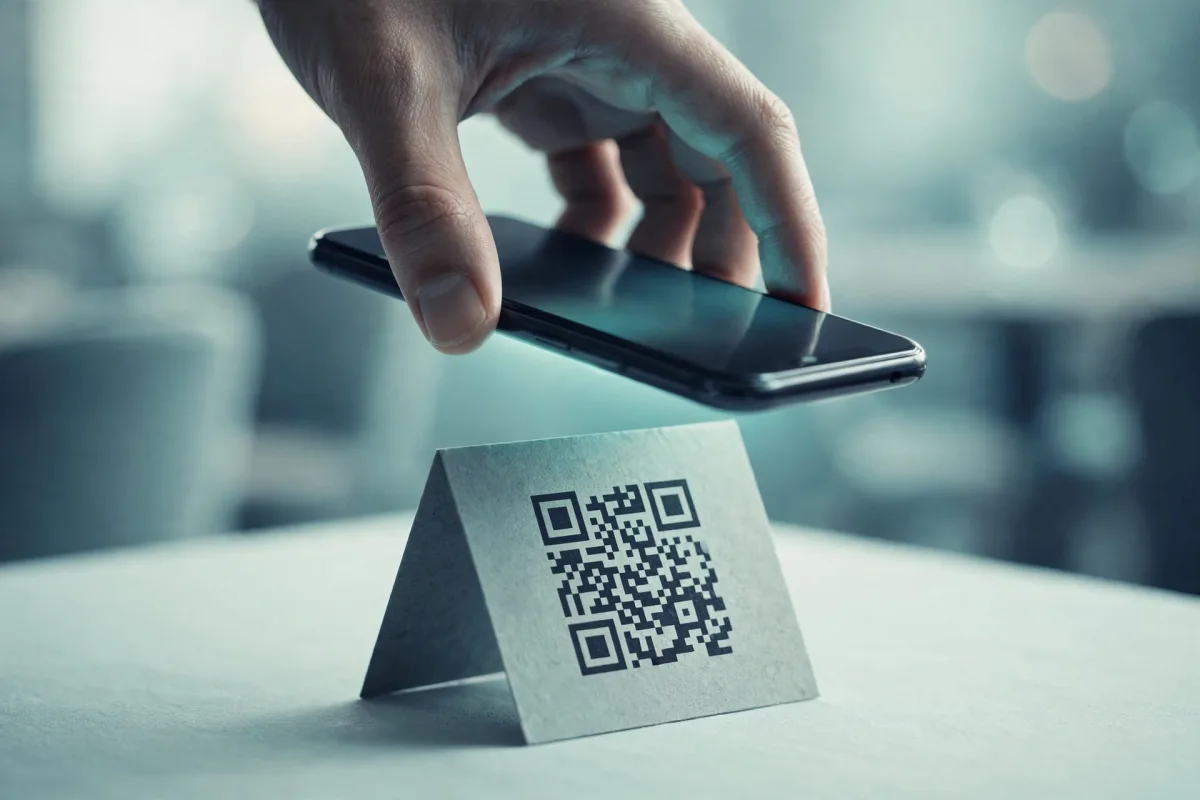
If your phone is from roughly the last seven or eight years, the built-in camera already reads QR codes: no separate ‘QR scanner’ app is needed, and you almost certainly should not install one, as many are stuffed with ads or tracking. Below is exactly how to do it on each platform.
How to scan a QR code on iPhone
Apple built QR scanning into the iPhone Camera app from iOS 11 onwards, so any iPhone running a reasonably recent version of iOS can do this natively.
To scan with the iPhone Camera:
- 1
Open the Camera app
Use the standard Camera app — no special mode needed. Make sure you’re on the rear ‘Photo’ camera.
- 2
Point at the QR code
Hold the phone steady so the whole code is in frame. You don’t need to take a photo — just frame it.
- 3
Tap the notification
A yellow link banner or notification appears at the top of the screen. Tap it to open the link, join the Wi-Fi network, or perform whatever action the code contains.
No banner appearing?
Go to Settings → Camera and make sure ‘Scan QR Codes’ is switched on. It’s on by default, but it can get disabled. You can also add a dedicated Code Scanner button to your Control Centre for one-tap access.
How to scan a QR code on Android
Android handles QR codes in one of two ways depending on your phone and version. On most recent devices the camera reads codes directly; on others you’ll use Google Lens, which is built into the camera, the Google app, and Google Photos.
Method 1 — using the Camera app (Android 9 and later, most phones):
- 1
Open your Camera app
Point it at the QR code and hold steady. On Samsung, Pixel and most modern Androids the code is recognised automatically.
- 2
Tap the pop-up
A link or suggestion chip appears over the code. Tap it to follow the action.
Method 2 — using Google Lens (works on virtually any Android):
- 1
Open Google Lens
Open it from the Camera’s Lens/Modes menu, the Google app’s search bar, or the Google Assistant.
- 2
Point and search
Aim at the QR code and tap the shutter or the on-screen search button.
- 3
Open the result
Lens reads the code and shows the link or content to tap.
How to scan a QR code from a screenshot or saved photo
What if the QR code is on your phone — in an email, a PDF, or a screenshot someone sent you? You can’t point your camera at your own screen, but you can still read it.
- iPhone: open the image in the Photos app, then either use Live Text (tap and hold the code) or tap the small data-detector icon Photos shows on a recognised code. You can also long-press a QR image in Safari and choose to open it.
- Android: open the image in Google Photos, tap the Lens icon at the bottom, and Lens will read the code from the saved picture.
- Any device: if you have a second phone or a friend nearby, the simplest fallback is to display the code on one screen and scan it with another phone’s camera.
Test your own codes this way
If you create a QR code, scan it from the saved file before you print anything. It’s the quickest way to confirm the data is correct and the code is readable at the size you’re using. You can also test it in our browser scanner: drop in the image or its contents and it decodes the code, shows what's inside, and measures its size, contrast and error correction.
Scanning on older phones without native support
If your camera genuinely doesn’t recognise QR codes — typically a phone more than about eight years old — you’ll need a scanner app. Choose carefully: pick a well-reviewed, ad-light option and grant it camera permission only. Avoid anything that demands contacts, location, or excessive permissions for what is a very simple task. Google Lens, installable from the Play Store, is a safe and free choice on older Androids.
“My camera won’t scan the QR code” — troubleshooting
When a scan fails it’s almost always one of a handful of fixable issues. Work through these in order:
| Symptom | Likely cause | Fix |
|---|---|---|
| Nothing happens at all | QR scanning disabled in settings | Enable ‘Scan QR Codes’ (iPhone) or use Google Lens (Android) |
| Code won’t focus | Too close, or low light | Move back so the whole code fits in frame; add light or turn on the torch |
| Reads slowly or not at all | Code too small for the distance | Get closer, or print larger — roughly a 10:1 distance-to-size ratio |
| Blurry / glare on screen | Reflection off a glossy surface or display | Tilt to kill the glare, or lower screen brightness if scanning a screen |
| Partial / cropped scan | Quiet zone covered, or code clipped | Make sure the blank margin and all four corners are visible |
If a specific code refuses to scan no matter what — for instance one you printed yourself — the problem is usually the code, not your phone: too small, too dense, low contrast, or a logo covering too much of it. Our dedicated guide on QR codes with logos and our print-size guide cover the most common culprits.
Check before you tap
QR codes are just links, so the same caution applies as with any link. Before tapping, glance at the preview URL your phone shows. If it looks unrelated to where you scanned it — say a random shortened link on a parking sign — don’t open it.
Scanning a Wi-Fi QR code
Wi-Fi codes work a little differently: instead of opening a link, scanning prompts your phone to join the network automatically, no password typing required. If you’re making one for guests, see how to make a Wi-Fi QR code.
Try it: scan a code in your browserPaste an image or the code's contents, or use your camera. It decodes the code, shows what's inside, and nothing needs installing.