

Design
How to make a QR code with a logo
By OpenQR · updated 24 June 2026
7 min read · Updated 24 June 2026
Make a QR code below, then open “Customise” to upload your logo. Free, no watermark, no sign-up.
Can you put a logo on a QR code?
Yes — and it’s by design. QR codes use Reed-Solomon error correction (part of the QR standard, ISO/IEC 18004), which adds redundant data so a scanner can mathematically rebuild information that’s missing or obscured. A centred logo simply covers some of that redundant data. As long as you stay within the recoverable amount, the code reads perfectly.
How to add a logo to your QR code
- 1
Create your QR code
Enter your link or content in the tool above.
- 2
Open “Customise design”
Then drag and drop your logo into the upload area (PNG, SVG, JPG or WebP).
- 3
Keep the logo modest
About a third of the code’s width (roughly 10% of its area) is a safe ceiling. OpenQR raises error correction automatically when you add a logo.
- 4
Add brand colours (optional)
Set your foreground colour or a gradient — keep strong contrast with the background.
- 5
Test, then download
Scan it with a couple of phones, then export a vector SVG/PDF for print or a high-res PNG. No watermark, any size.
Error correction: the setting that makes it work
Every QR code is built at one of four error-correction levels. Higher levels can recover more of the code if it’s damaged or covered — which is exactly what a logo does.
| Level | Recovers up to | Best for |
|---|---|---|
| L (Low) | ~7% | Clean digital screens, maximum data |
| M (Medium) | ~15% | General print — the usual default |
| Q (Quartile) | ~25% | Packaging, stickers, busier designs |
| H (High) | ~30% | Logos, outdoor or dirty surfaces |
OpenQR raises it for you
When you add a logo, OpenQR raises the error-correction level automatically so the code carries as much recovery data as it sensibly can. But error correction is not a licence for a big logo: those percentages are of the code’s data, not its area, and a code fails well before the logo reaches the nominal budget.
Higher isn’t free
More error correction means more modules, so a level-H code is denser. Print it a little larger to keep the modules crisp.
How big can the logo be?
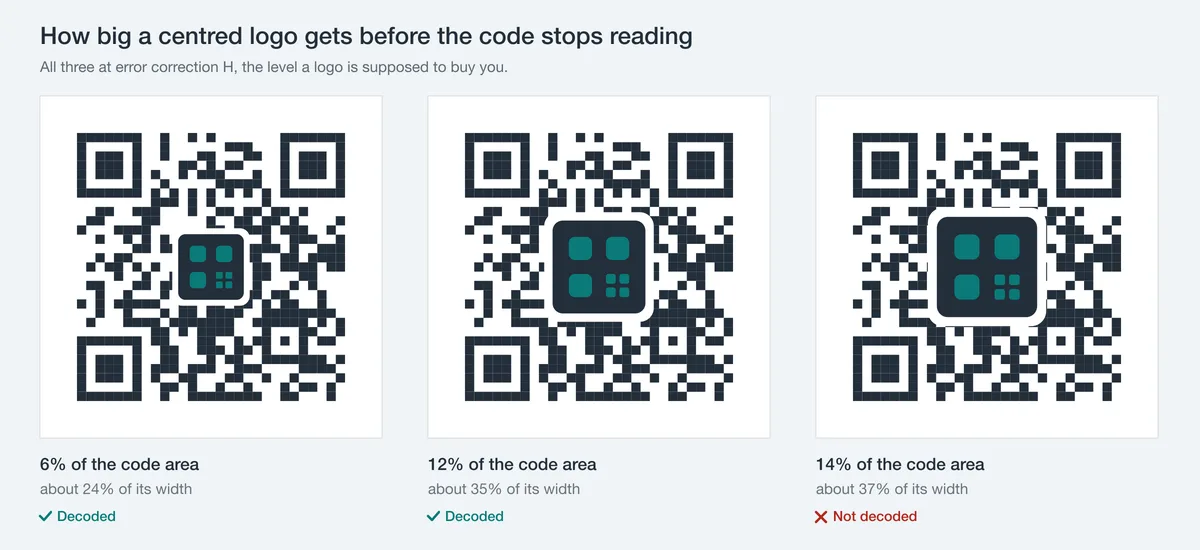
Keep the logo to about a third of the code’s width, which is only ~10% of its area. Measured against a real decoder, a 29x29 code at level H took a centred mark up to 12% of its area and failed at 14%, so a third of the width keeps you on the safe side of that margin. The old “cover up to 30%” rule confuses the error-correction budget, counted in lost data codewords, with logo area, and codes fail well before then. When in doubt, smaller is safer, and always test.
Don’t cover the corners
The three large squares in the corners are finder patterns — they tell a scanner where the code is and how it’s rotated. A centred logo never touches them, which is why centre placement is the safe choice. Avoid logos or graphics that bleed into the corners.
Preparing your logo
- Use a transparent PNG or an SVG so the code’s background shows through cleanly.
- Square or circular logos sit better than wide rectangular ones.
- Give it a little padding — a touch of clear space around the logo helps the scanner.
- Keep contrast strong: a dark code on a light background. Avoid inverting (light modules on a dark field): many common scanners, including those built on ZBar or OpenCV, cannot read inverted codes at all, so inversion quietly cuts your audience.
- File size: a reasonably small image (under ~2 MB) is plenty.
Export format matters for logos
If the code is going to print — packaging, posters, business cards — export a vector SVG or PDF. Vectors stay razor-sharp at any size, so your logo and the modules never pixelate. For screens, a high-resolution PNG is fine. OpenQR gives you all of these free, with no watermark. See our guide to QR code formats for which to pick.
Always test before you print
A logo’d code can look perfect and still fail if it’s too big or low-contrast. Before any print run, scan the final design with three to five different phones, in normal and dim light, at the distance people will actually scan from. Aim for an instant, first-try read.
Will a branded QR code expire?
Not an OpenQR one. A static branded code encodes your link directly, so it works forever, free, with no account and no tracking redirect that could lapse. If you want to re-point the code later, OpenQR's dynamic codes carry the same styling — colours, shape, logo — and on a free account they have no expiry date either. The only branded codes that die are the ones tied to a paid subscription that lapses; every printed copy dies with it.