

Use cases
QR codes for business cards
By OpenQR · updated 24 June 2026
7 min read · Updated 24 June 2026
What should a business-card QR code link to?
The most flexible option is a URL pointing to your contact details: a digital business card page, your LinkedIn, a portfolio, or a hosted vCard file. Three reasons a URL beats cramming a full contact (vCard) into the code itself:
- It stays small and easy to scan. A full vCard with name, phone, email, address and company packs a lot of data, making the code dense and harder to read at business-card size.
- You can update it. Change jobs or numbers? Update the page — the printed card still works. An embedded vCard is fixed forever once printed.
- It can do more. A page can offer “Save contact”, social links, a booking calendar and a portfolio in one place.
Good things to link to
A digital business card page, LinkedIn profile, portfolio, Calendly/booking link, your website, or a “leave a review” link for service businesses. The same vCard-or-URL choice applies in your email signature.
Make your business-card QR code
Paste your link, add your logo and brand colour, and download a print-ready vector — free, no watermark.
How big should the QR code be on a business card?
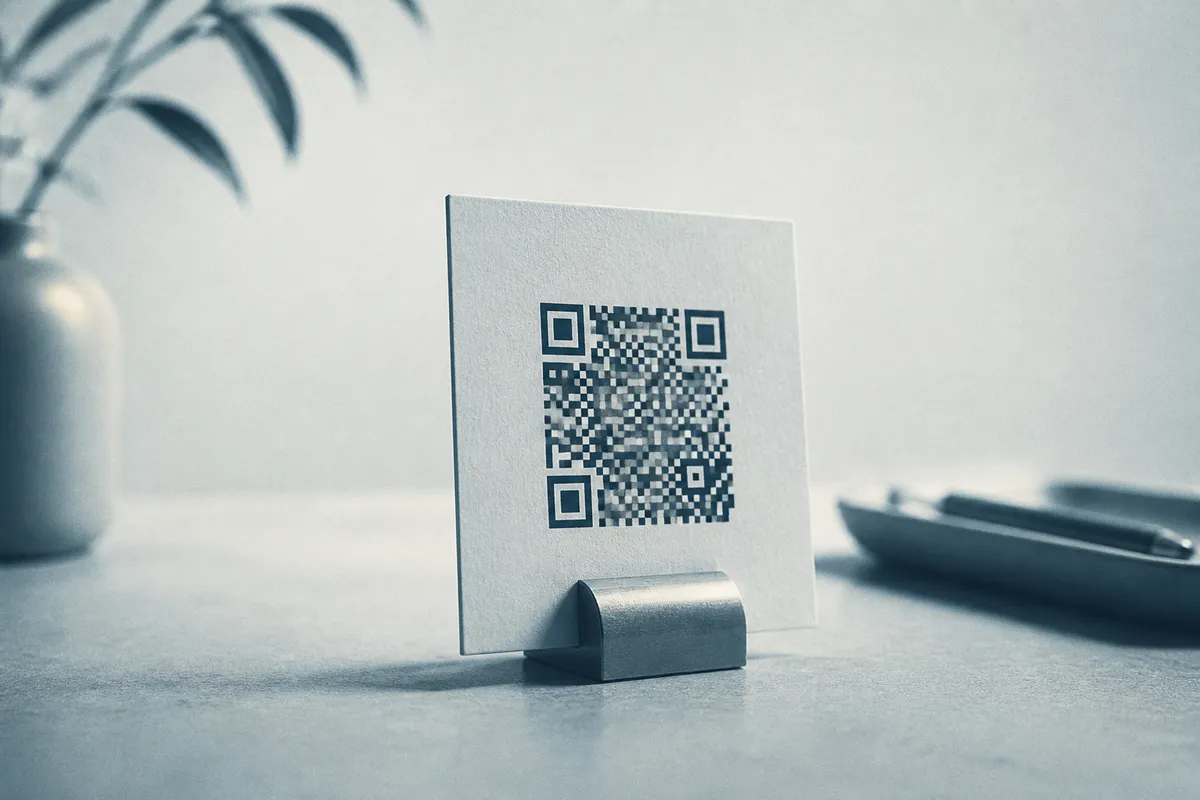
Aim for about 2–2.5 cm (0.8–1 inch) square — roughly a quarter to a third of the card’s width. Keep these minimums in mind:
| What it links to | Minimum size | Recommended |
|---|---|---|
| A short URL (recommended) | 2 cm | 2.5 cm |
| A full embedded vCard | 3 cm | up to ~4.3 cm |
Don’t go too small
Below ~2 cm, cameras struggle — especially older phones in poor light. If space is tight, link to a short URL (less data = smaller, simpler code) rather than shrinking a dense one.
Leave a quiet zone
Keep clear space around the code — at least four modules, about 10% of its width. Don’t let text, your logo or the card edge butt up against it. A generous quiet zone is one of the biggest factors in reliable scanning.
Front or back?
Either works. The back is most common, keeping the front clean for your name and role. If the code is your card’s main call to action (e.g. “Scan to save my details”), the front is fine — just give it room and a short prompt.
Contrast and colour
Use a dark code on a light background — classic black-on-white is the most reliable. You can use a brand colour for the code, but keep a strong contrast ratio (aim for at least 4:1). Avoid light-on-dark “inverted” codes unless you’ve tested them thoroughly; many scanners struggle with them.
Adding your logo
A small centred logo looks sharp and on-brand. Keep it to about a third of the code’s width (roughly 10% of its area) and OpenQR will raise error correction automatically so it still scans. See the QR code with a logo guide for the details.
Print resolution and format
Cards are printed at high resolution, so export a vector SVG or PDF — it stays perfectly crisp at any size and is exactly what a print shop wants. If you must use a raster image, export PNG at 300 DPI or higher; never use a 72 DPI screenshot. For glossy or laminated cards, print the code slightly larger to counter glare. Our formats guide explains which to choose.
Do business-card QR codes expire?
A static code never expires: the link is encoded directly and works forever, free, with no account. OpenQR also offers dynamic codes (1 free on the free plan, 25 active on Pro at £9/mo) if you want to repoint the printed code later or count scans; a dynamic code resolves only while its redirect is live, which is why a static code is the safer choice for something printed in bulk. Be wary of any tool that puts its logo or its scan analytics behind a subscription you must keep paying, because a lapsed subscription stops every card you have handed out.
Test before you print a thousand
Print one proof at final size and scan it with several phones, in different lighting. It should read in under three seconds. Cards are expensive to reprint — five minutes of testing is worth it.