

Use cases
QR Codes for Email Signatures: What Works and What Doesn't
By OpenQR · updated 30 June 2026
A QR code in your email signature can let someone save your contact details, book a meeting or open your portfolio in a single scan. But there is an important catch most guides skip: a recipient cannot scan a code on the same phone they are reading the email on, and many email clients block or strip images by default. Used with that in mind, a signature code is genuinely useful — for emails that get printed, read on a desktop, or shown on a screen. This guide covers what to link to, how to size and embed it, and how to roll a consistent code out across a team.
7 min read · Updated 30 June 2026
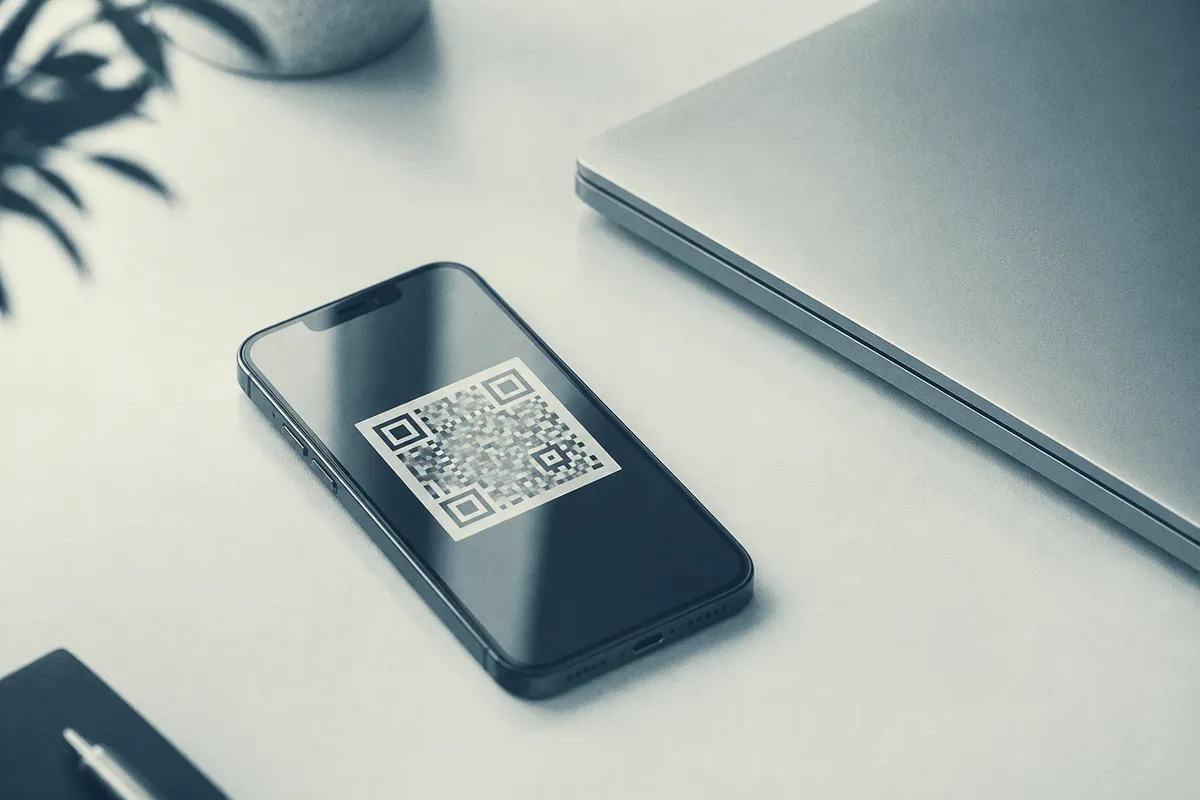
A QR code is simply a scannable link. You take a web address — your contact card, a booking page, your portfolio — turn it into a code, and drop the image into your signature. Because a static code stores the address itself, it is free to create and never expires. OpenQR makes static codes in your browser with no watermark, and exports a clean PNG that sits neatly in a signature. The honest part of this guide is knowing when a signature code earns its place, so the rest covers the limits as much as the wins.
Read this before you add one
Nobody can scan a code on the same phone they are reading the email on — scanning needs a second device. So a signature code only does its job when the email is printed, read on a desktop, or shown on a screen and scanned with a phone. Treat it as a bonus, never as your only way to share a link.
When a signature QR code actually gets scanned
A signature code earns its keep in exactly three situations: when the email is printed (a quote, a proposal, an invoice), when it is read on a desktop or laptop and the reader scans with their phone, and when the email is shown on a screen in a meeting or on a shared display. Most email is read on a phone, and you cannot point that same phone's camera at a code on its own screen, so outside those situations the plain-text link beside it does the work. That is exactly why you always include one.
What to link a signature code to
- A vCard contact card — one scan saves your name, role, phone, email and website straight into the recipient's phone. The single most useful signature code.
- A booking or calendar page — let people scan to grab a slot instead of trading emails to find a time.
- Your portfolio, website or LinkedIn — send people to your work or profile without a long URL to type.
- A Google review request — for client-facing roles, link to your review page so happy clients can leave feedback in seconds.
- An app download — point to your App Store or Play listing if getting the app installed is the goal.
One code, one job
Pick a single purpose per signature. A vCard code that saves your details asks one action of the reader; a code that opens a busy links page asks them to choose. If different teams need different destinations, give each their own code rather than one shared menu.
vCard codes: the strongest fit
A vCard QR code encodes your contact details so a single scan offers to save them as a new contact — no typing, no copy-and-paste. It is the most natural use for a signature because it does something a plain link cannot. A vCard is also a good candidate for a static code: your name and core details rarely change, so there is nothing to update later. You can build one with our vCard QR code generator, and our guide to QR codes for business cards covers the same contact-sharing idea for print.
Static or dynamic? Match it to the destination
The right type depends on whether the destination might change. A static code is locked to its URL forever, which is fine for details that are stable. A dynamic code lets you edit the destination later without changing the image — invaluable when the code is embedded in dozens of signatures you would otherwise have to re-edit one by one. Our guide to static versus dynamic QR codes explains the trade-off in full.
| What it links to | Best choice | Why |
|---|---|---|
| Your vCard contact details | Static | Stable details; nothing to update later |
| A booking or calendar page | Dynamic | Swap the destination if your tool or link changes |
| A current campaign or offer | Dynamic | Repoint everyone's code without re-editing signatures |
| A review or portfolio page | Dynamic | Future-proofs the link and lets you track scans |
Dynamic codes can be measured
Because a dynamic code routes through a redirect, you can see how often it is scanned. If you want to know whether a signature code is worth keeping, our guide on tracking QR code scans explains what you can and cannot measure.
Sizing and design for a signature
Signatures are small, so the code must be small too — roughly 80–120 px wide sits comfortably beside your details without dominating the email. The catch is that small does not mean low quality: always export from a high-resolution source and let the email display it at the smaller size, so it stays crisp on high-density screens and survives if the email is printed. A blurry, upscaled code will fail to scan.
- Keep strong contrast — a dark code on a white or very light background scans best. Avoid placing it over a coloured banner or photo.
- Leave the quiet zone — the clear margin of empty space around the code — intact. Don't let text or a logo crowd it.
- Export a high-resolution PNG and display it small; never stretch a small image up to fit.
- Add a short caption such as “Scan to save my contact” so people know what it does before they reach for a phone.
- Keep the whole signature light — a large image makes emails slower and more likely to be clipped by the mail client.
For more on file types, our format guide explains when PNG, SVG or PDF makes sense — for signatures, PNG is the safe choice because email clients render it reliably. If you want your brand mark in the centre of the code, see our guide to QR codes with a logo, but keep it subtle and test hard, since a small signature code has little room to spare.
Embed the image properly
How you place the code matters as much as the code itself. Many email clients — Outlook and Gmail among them — block or strip remote images until the reader clicks “show images”, and some strip them entirely. A code that doesn't load is worse than no code at all, because it leaves a broken box in your signature.
- Host the image on a stable, reachable URL (or use your signature manager's hosting) rather than linking to a temporary file.
- Always include a plain-text link or your details in text right next to the code, so the signature still works when the image is blocked.
- Add descriptive alt text to the image so something sensible shows if it fails to load.
- Avoid pasting the code as an inline attachment — it can show as a paperclip or get stripped on the way through.
Never rely on the code alone
Between same-device scanning and image blocking, a meaningful share of recipients will never use the code. Pair it with the plain link or details every time. The code is a convenience for the right moment, not your primary call to action.
Test across Gmail, Outlook and Apple Mail
A signature goes out to everyone you email, so check it works before you commit:
- 1
Send yourself a test
Email the signature to accounts on Gmail, Outlook and Apple Mail and open each one.
- 2
Check with images off
Confirm the signature still reads sensibly when remote images are blocked.
- 3
Scan it for real
Open the email on a desktop and scan the code with a phone — test the actual rendered size.
- 4
Confirm the destination
Make sure the vCard saves cleanly, or the page opens and works well on a phone.
- 5
Print one
If your emails get printed, print a test and scan that too.
Rolling it out across a team
Use your email signature manager or admin tool to push one signature template, so the code is embedded the same way for everyone and you are not chasing colleagues to paste an image correctly. A dynamic code shines here: if the destination changes (a new booking system, a fresh campaign), you update it once and every signature follows, with no need to re-edit anyone's setup. If you are setting this up alongside other touchpoints, our guide on QR codes for small businesses covers the wider picture.
Keep the destination trustworthy
People are right to be cautious about scanning codes from email. Point yours at a clear page on a domain people recognise, and avoid link shorteners that hide where the code leads. Our article on whether QR codes are safe explains why transparency builds trust.