

Design
Do QR code colours affect scanning?
By OpenQR · updated 24 June 2026
7 min read · Updated 24 June 2026
How a scanner actually reads colour
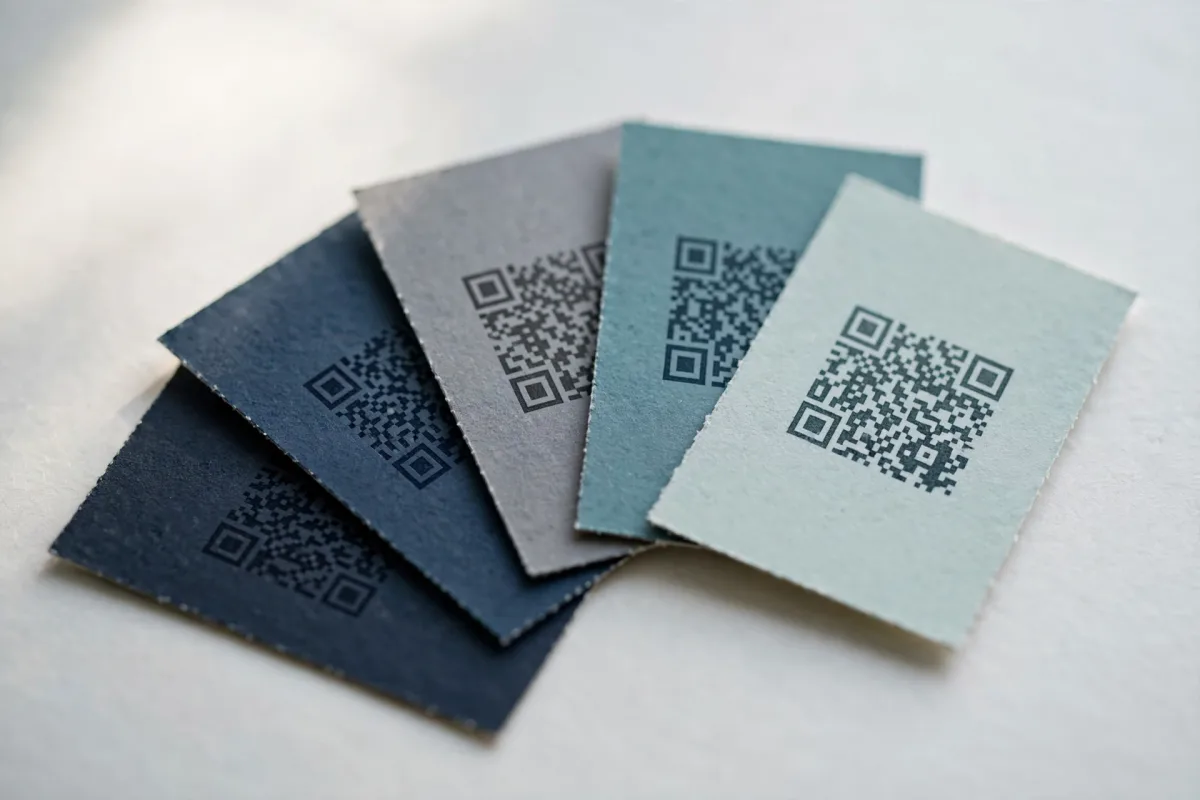
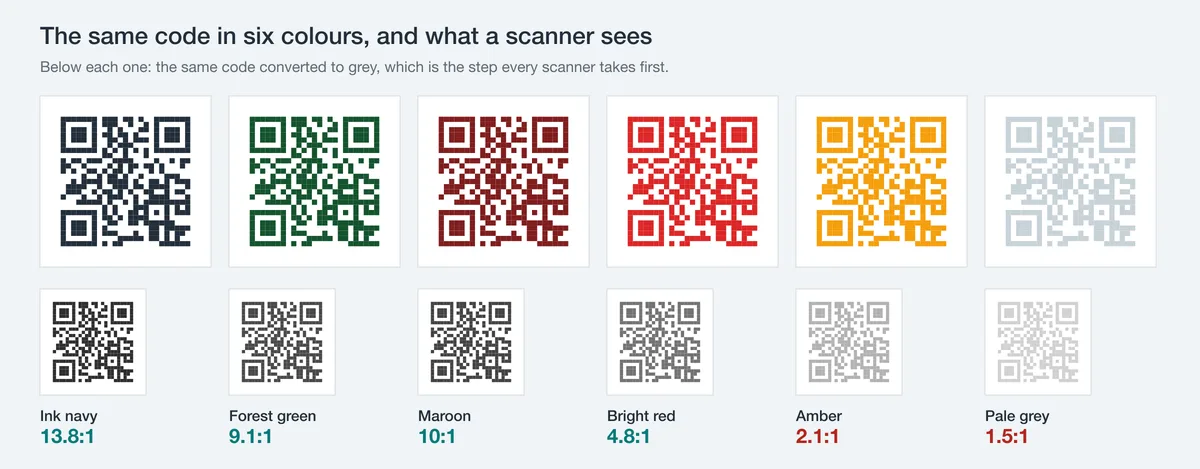
A QR scanner converts the image to greyscale before it reads anything, so it never sees your colours: only the difference in brightness between the dark modules (the squares that carry data) and the light background. As long as the dark parts are clearly darker than the light parts, the scanner can tell them apart. That is why a navy-on-cream code scans fine, but a mid-grey-on-light-grey code fails: the colours differ, but the brightness barely does.
The standard behind every QR code (ISO/IEC 18004) doesn’t mandate black and white — it assumes a dark pattern on a light field. Stay on the right side of that assumption and you have a lot of creative freedom.
The one rule that matters: contrast
Aim for a contrast ratio of at least 4:1 between the dark modules and the background — higher is safer. The classic black-on-white code is roughly 21:1, which is why it never fails. Your coloured code doesn’t need to match that, but it should be comfortably above the minimum.
- Dark on light, always. Keep the data modules dark and the background light.
- Test in grey. If you convert your two colours to greyscale and can still clearly tell them apart, a scanner can too.
- Mind real-world conditions. Dim lighting, glossy print and small sizes all eat into your margin — so leave headroom.
Quick test
Squint at your code, or view it as a black-and-white photo. If the pattern stays crisp and obvious, it will scan. If it goes muddy, increase the contrast.
Brand colours that work
Most brand palettes have at least one colour dark enough to use for the modules. Deep, saturated tones are your friends; pale or pastel tones are not — they’re too bright to stand out against a light background.
| Colour | Scans reliably? | Why |
|---|---|---|
| Navy / dark blue | Yes | Dark and saturated — excellent contrast on white |
| Deep green / forest | Yes | Plenty dark enough against a light field |
| Maroon / burgundy | Yes | Dark red reads clearly as the dark module |
| Charcoal / near-black | Yes | Essentially black to a scanner |
| Bright red | Usually | Borderline — test it; pair only with white |
| Orange / yellow | Rarely | Too bright; use as background, not modules |
| Pastel / light grey | No | Not dark enough to register as data |
Flip the brand colour if needed
If your brand colour is bright (yellow, orange, lime), use it for the light background or surrounding design and keep the modules dark. You still get a branded look without sacrificing the scan.
Can QR codes have gradients?
Yes — a gradient across the dark modules can look striking and still scan, but only if every part of the gradient stays dark enough against the background. The danger is the light end of the gradient: if it fades toward a pale tint, those modules lose contrast and the code can fail in that region. Keep gradients within a dark range (for example, navy to deep purple) rather than dark-to-light.
- Limit gradients to the dark modules, never the quiet zone or background.
- Use two dark colours, not one dark and one pale.
- Bump the error correction level up a notch (Q or H) for extra resilience.
- Always test the printed or on-screen result before you commit.
The inversion trap
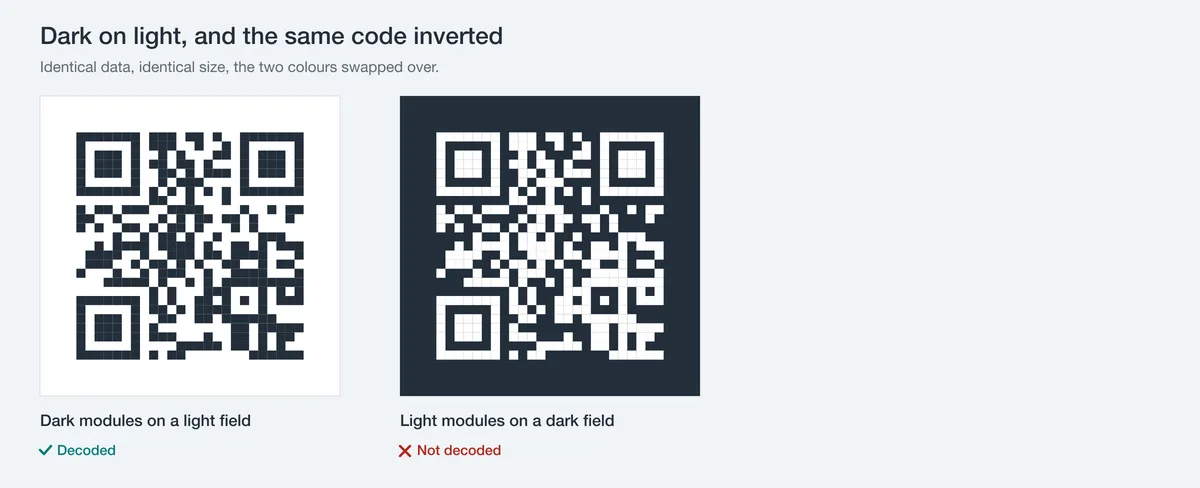
An inverted code — light modules on a dark background — looks slick but is genuinely risky. Many scanners expect dark-on-light and won’t even attempt an inverted pattern, so you’re relying on the subset of apps that auto-detect inversion. Unless you’ve tested across plenty of devices, avoid it. If a dark background is essential to your design, place a normal dark-on-light code inside a light panel rather than inverting the code itself.
Don’t invert by default
Light-on-dark codes are the single most common cause of “it won’t scan”. Keep the modules dark and the background light, and reserve your dark colour for the area around the code.
Colour do’s and don’ts
| Do | Don’t |
|---|---|
| Keep modules dark, background light | Invert to light-on-dark without testing |
| Use saturated, dark brand colours | Use pastels or pale tints for modules |
| Keep contrast at 4:1 or better | Rely on hue difference alone |
| Limit gradients to a dark range | Fade modules toward a pale colour |
| Leave the quiet zone plain and light | Run colour or imagery into the quiet zone |
| Test on multiple phones and in low light | Assume on-screen success means print success |
Where colour fits with logos and size
Colour is just one part of a reliable code. If you’re also adding a logo, keep it small and central so it doesn’t overlap data: measured at error correction level H, a centred logo still scanned at 12% of the code’s area and failed at 14%. See our guide to a QR code with a logo. And remember that smaller codes are less forgiving of low contrast: read up on the right QR code size for print before you finalise. If a code still won’t read, our notes on why your QR code isn’t scanning walk through the usual culprits.
Make a coloured QR code that scans
Pick the darkest colour in your palette for the modules, leave the background light and plain, and keep the quiet zone clear. Test the exported file on two phones before it goes anywhere near print.
Open the QR generator with logo and coloursFree, no watermark — pick your brand colours, add a logo and export print-ready files.