

QR code size for print
By OpenQR · updated 24 June 2026
7 min read · Updated 24 June 2026
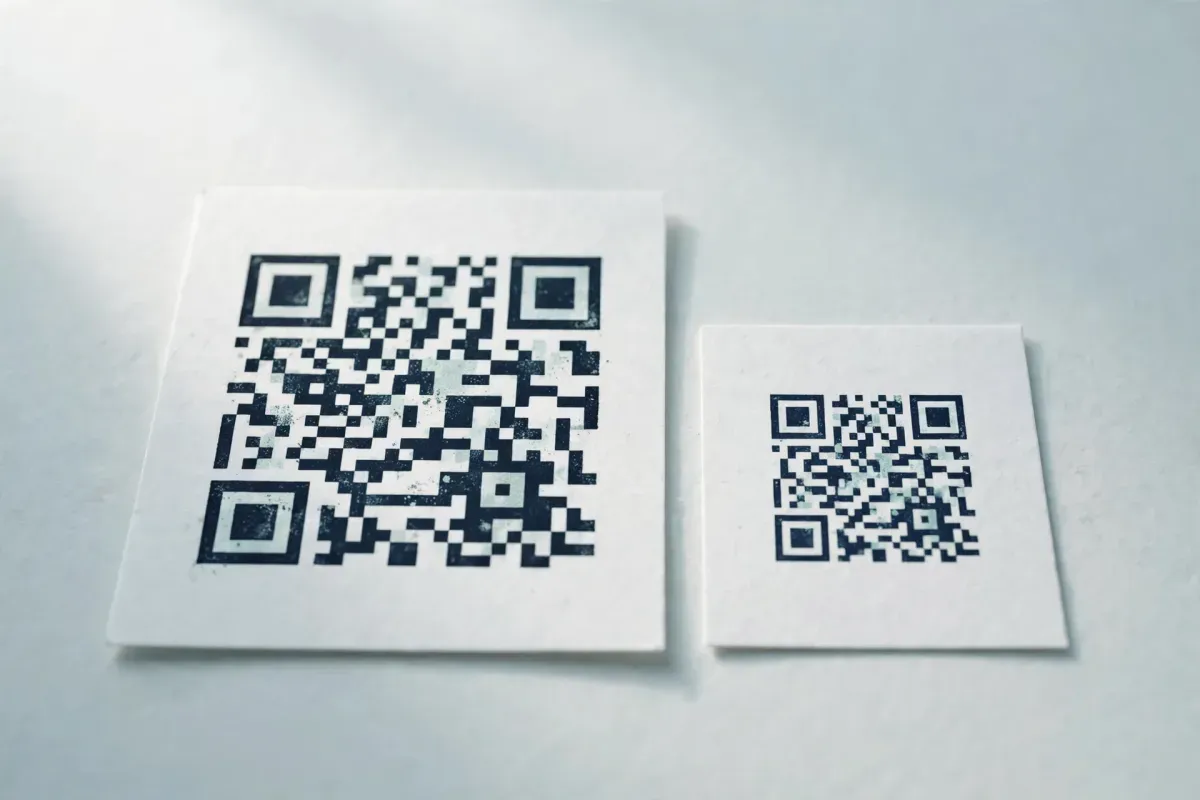
The 10:1 rule (the only formula you need)
A QR code should be at least one tenth of the distance people will scan it from. So if someone scans from 30 cm away, the code needs to be ≥3 cm; from 1 metre, ≥10 cm; from a 10 m billboard, ≥1 m.
Code size ≈ scanning distance ÷ 10. Then add a safety margin — about +20% indoors and +30% outdoors to allow for glare, weather and older phone cameras.
QR code size by use case
| Use case | Typical distance | Minimum | Recommended |
|---|---|---|---|
| Business card (short URL) | 20–30 cm | 2 cm | 2.5 cm |
| Business card (full vCard) | 20–30 cm | 3 cm | 4 cm |
| Packaging / label | 20–30 cm | 2 cm | 2–2.5 cm |
| Flyer / brochure | 30 cm | 2 cm | 3 cm |
| Menu / table tent | 30 cm | 2 cm | 2.5–3 cm |
| Indoor poster | 1–2 m | 3 cm | 5 cm |
| Street / window poster | 2–3 m | 7 cm | 10 cm |
| Billboard | 10 m+ | 20 cm | 1 m+ |
Absolute minimum
The practical floor for a reliable scan is about 2 × 2 cm (0.8 in). ISO 18004 allows smaller in theory, but tiny codes are fragile — don’t go below 2 cm for anything that matters.
Leave a quiet zone
Every QR code needs clear, empty space around it: the quiet zone. The standard calls for at least 4 modules (about 10% of the code’s width) on all four sides. Text, logos, borders or the edge of a card intruding into this zone is one of the most common causes of scan failure, because scanners use that border to work out where the code starts and ends.
Resolution: vector or 300 DPI
The safest choice for print is a vector file (SVG or PDF) — it’s resolution-independent and stays razor-sharp at any size, from a stamp to a billboard. If you must use a raster image (PNG), export it at 300 DPI minimum at the final printed size; never scale up a 72 DPI screen export. See the formats guide for which to use.
Error correction and size are linked
Higher error correction adds redundancy — useful for logos and rough conditions — but it also makes the code denser, so it needs to be printed larger to keep each module legible.
| Level | Recovery | Use for print |
|---|---|---|
| L | ~7% | Pristine, close-range only |
| M | ~15% | Default for clean indoor print |
| Q | ~25% | Packaging, stickers, mild wear |
| H | ~30% | Logos, outdoor, curved or laminated surfaces |
Higher isn’t automatically better
Level H is great for logos and harsh conditions, but the extra density means a too-small H code can scan worse than an M code. Match the level to the job — and size up accordingly.
Contrast and colour for print
- Use a dark code on a light background — black-on-white is ideal (contrast ~21:1). Keep at least 4:1.
- Never invert (light code on dark) for print without thorough testing — many scanners fail on it.
- Convert RGB → CMYK before printing and re-check contrast; colours shift in CMYK and can drop below the scannable threshold.
- Prefer matte over gloss — shiny finishes cause glare that blocks scans.
Surfaces and finishes
Glossy, laminated, embossed, metallic or curved surfaces scatter light and make scanning harder. For any of these, increase the printed size by 10–25% and lean toward a matte finish. For outdoor use, account for weather, fading and viewing angle.
Test before the print run
Always proof at the final printed size on the actual material, then scan with 3–5 different phones (iPhone and Android), in two lighting conditions, from the real viewing distance. Aim for a confident read in under three seconds. Catching a sizing problem on one proof is free; catching it after 5,000 flyers are printed isn’t.
Common reasons a printed QR code won’t scan
- Printed too small for the viewing distance (breaks the 10:1 rule).
- No quiet zone — something touches the code.
- Low resolution (a 72 DPI raster scaled up) — blurry modules.
- Glare from gloss lamination.
- Low contrast, or an inverted colour scheme.
- Too much error correction crammed into too small a size.
Make a print-ready QR code
OpenQR exports vector SVG and PDF at any size, with full control over margin (quiet zone), colours and error correction — free and watermark-free.
Create a print-ready QR codeFree SVG & PDF export, no watermark