

Troubleshooting
QR code not scanning when printed? The print-specific fixes
By OpenQR · updated 7 September 2026
When the file scans on screen and the print is dead, the fault is physical, and the commonest cause is an image upscaled into blur: fix it by exporting a true-vector SVG or PDF instead of stretching a PNG. The other print killers, in the order they turn up, are size at the scan distance, a quiet-zone margin eaten by the layout, ink spread on absorbent stock, glare from a glossy finish, and the distortion of a curved surface. This is the print-focused companion to our general why is my QR code not scanning guide: everything here is about the jump from pixels to paper.
8 min read · Updated 7 September 2026
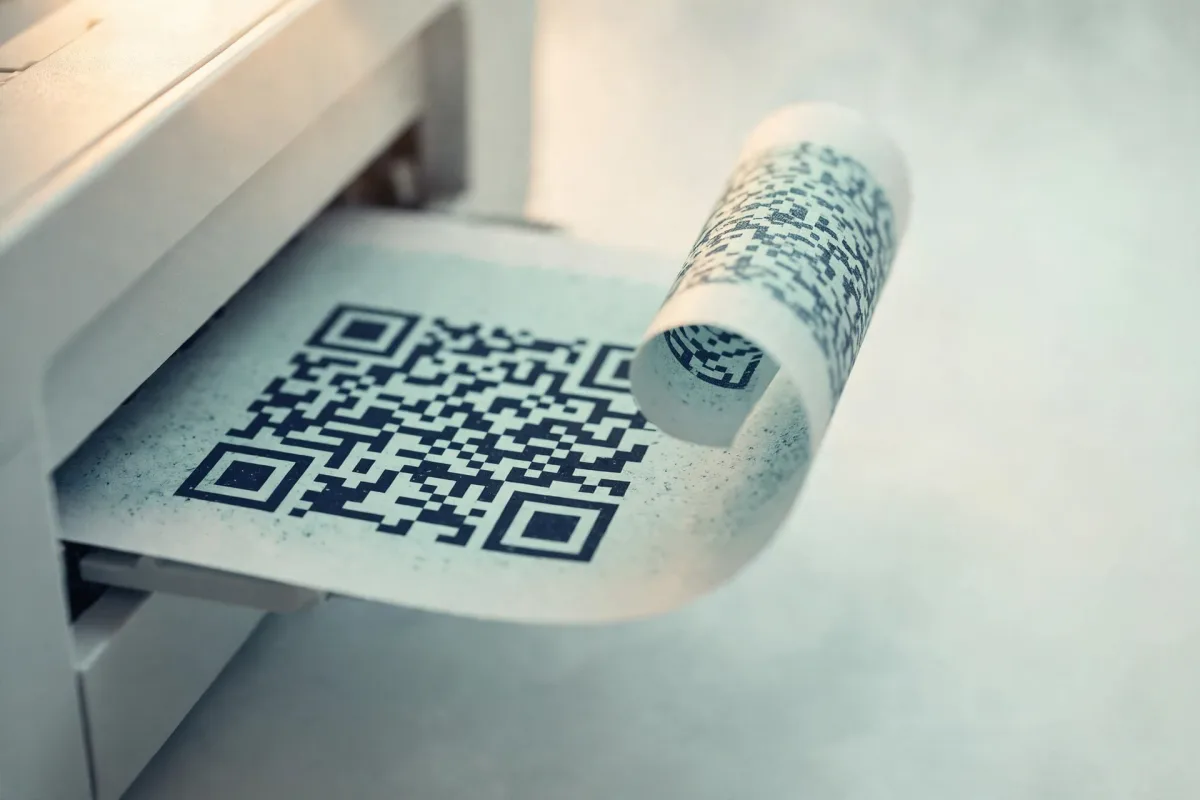
First, confirm it really is a print problem
Open the original export full-size on your monitor and scan it there. If it reads cleanly on screen but fails on paper, the code itself is sound and the problem lives entirely in the print pipeline — so skip the general checks (contrast, logo, dead link) and work the print-specific causes below. If it also fails on screen, start with the general troubleshooting fault-tree instead; there is no point chasing the printer for a fault that is baked into the file.
1. Low resolution and upscaling blur
This is the number-one reason printed codes fail. A small PNG that looks crisp on screen gets stretched to fill a layout, and the printer renders soft, fuzzy edges instead of clean squares. Scanners need sharp black-and-white module boundaries; blur turns the grid to mush. The fix is to never let anyone scale a raster code up. Export a true-vector SVG or PDF that stays razor-sharp at any print size, or a high-DPI raster (aim for 300 DPI at the final printed dimensions). OpenQR gives you both — vector SVG and PDF that scale to any size without blurring, and PNG or WebP up to 4096 px for large-format raster work.
Send vector to the printer
If your artwork goes to a professional printer, hand them the SVG or PDF, not a PNG. Vector cannot pixelate — it is resolution-independent, so the same file is sharp on a business card or a billboard.
2. The code is too small for the scan distance
A code can be perfectly sharp and still fail simply because it is physically too small for how far away it is read. Use the 10:1 rule: the scan distance should be no more than about ten times the code's width. A code read from one metre away needs to be at least roughly 10 cm wide; a poster read from across a room needs a far larger code than most designers instinctively allow. Denser codes — more data, a finer grid — need to be larger still. Our QR code size for print guide gives target dimensions per medium, and the QR code scanner tells you the density you are actually printing: it decodes your code in the browser and reports the version and module count, so “too small” stops being a guess.
3. The quiet zone was lost in the layout
The quiet zone is the blank margin around the code — at least four modules on every side — that lets a scanner find its edges. It is the classic casualty of print layout: someone drops the code into a tight box, butts it against a caption or a coloured panel, or lets a background pattern run right up to it, and the margin vanishes. A code that scanned as a standalone file will suddenly die once it is placed. Reserve clear space on all four sides and keep it genuinely empty.
Watch the bleed and trim
If a code sits near the edge of the artwork, the trim can slice into its quiet zone — or the code itself. Keep the whole code, plus its four-module margin, well inside the safe area, clear of the bleed and trim lines.
4. Ink spread, weak contrast and CMYK colour shift
Paper is not a screen. Ink spreads slightly as it soaks in (dot gain), thickening the dark modules and narrowing the light gaps — on absorbent or uncoated stock this can close up the grid until it is unreadable. Meanwhile a colour that looked bold on your RGB monitor can shift and desaturate once converted to CMYK for the press, softening the contrast the scanner depends on. Keep it high-contrast: true dark modules on a genuinely light background, never inverted, and be wary of pale or trendy low-contrast palettes that only just work on screen.
5. Gloss, lamination and glare
A flawless code can be defeated by its own finish. Glossy stock, a shiny laminate or a UV coating bounces overhead light straight back into the camera, which sees a white wash instead of the pattern. Wherever a code needs to be scanned reliably, specify a matte finish over that area. It is the cheapest insurance you can buy against a dead print run.
6. Curved, textured and tiny surfaces
Packaging is unforgiving. A code wrapped around a bottle or a tube curves away from the camera, distorting the grid; textured or matte-embossed card scatters the pattern; and shrinking a code to fit a small label can push it below its legible size. For curved and small surfaces, keep the code as large and as flat as the pack allows, raise the error-correction level (Q or H buys tolerance for distortion and print noise), and test on the actual material — a proof on your office laser printer will not reveal how it behaves on a curved gloss bottle.
The finder patterns (the three large squares in the corners) are what a scanner locks onto first, so protect those especially on difficult surfaces. Error-correction levels (L, M, Q, H nominally recover 7%, 15%, 25% and 30% of the data) trade code density for resilience, and recovery counts lost data codewords rather than area: measured by blanking a growing patch and re-decoding, codes at those levels survived 3%, 6%, 12% and 15% of their area obscured. On print, the extra headroom of Q or H is usually worth it.
| Symptom | Likely cause | Fix |
|---|---|---|
| Edges soft or fuzzy on paper | Raster upscaled / low DPI | Export SVG or PDF, or 300 DPI at final size |
| Blocky, jagged modules | Low-resolution PNG stretched | Use vector or a 4096 px high-DPI export |
| Fails at distance, fine up close | Printed too small | Enlarge using the 10:1 rule |
| Scanned as a file, dead in the layout | Quiet zone lost | Restore 4+ modules of clear margin |
| Grid looks clogged / merged | Ink spread on absorbent stock | Enlarge, raise contrast, coated stock |
| Washed out under light | Gloss / lamination glare | Specify a matte finish |
| Fails on a bottle or curved pack | Surface curvature / texture | Keep flat and large, raise error correction |
| Corner or edge missing | Cropped by bleed / trim | Move code inside the safe area |
Pre-print checklist
- Supplied as vector (SVG/PDF) or a 300 DPI raster at the final printed size — never an upscaled PNG.
- Code is large enough for the scan distance (10:1 rule).
- Quiet zone of at least four modules on all sides, kept genuinely empty.
- High contrast — dark modules on a light background, checked after CMYK conversion, not inverted.
- Whole code plus its margin sits inside the safe area, clear of bleed and trim.
- Matte finish over the code where gloss or lamination could cause glare.
- Error correction raised to Q or H for curved, textured, small or high-stakes prints.
- Actual printed proof — on the real stock — test-scanned with two different phones before the full run.
That last point is the one people skip and regret. A screen preview or a desktop proof tells you nothing about ink spread, glare or how the code sits on the finished material. Scan the real proof, on the real stock, in the light it will actually be read in.
Test the printed proof in your browserPhotograph the printed code and drop the image in: the scanner tells you whether it reads, and measures its size, quiet zone, contrast and error correction. Free, nothing to install.