

Design
Transparent QR codes
By OpenQR · updated 24 June 2026
7 min read · Updated 24 June 2026
What is a transparent QR code?
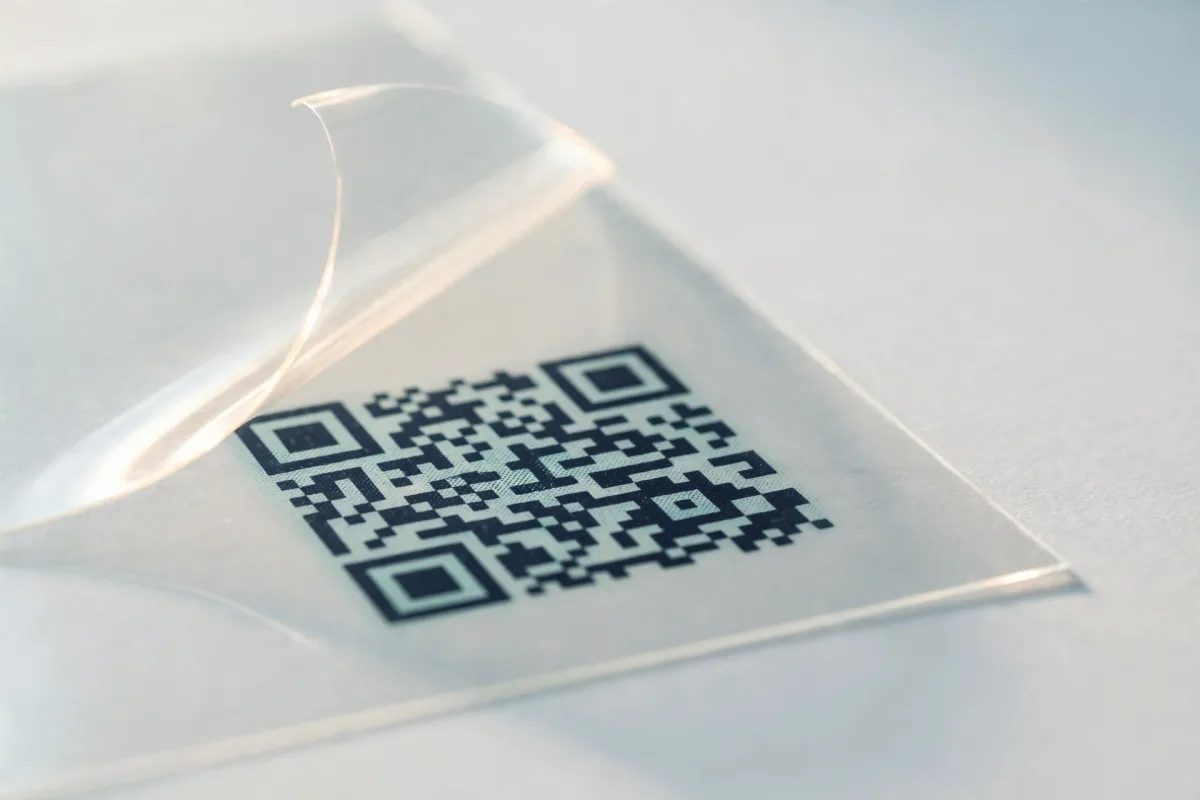
A normal QR code is exported with a solid (usually white) background. A transparent code replaces that background with an alpha channel — empty pixels — so only the dark modules are visible. Drop it onto a layout and the design behind it shows through the gaps between modules, with no white rectangle interrupting the artwork.
The data modules themselves are still solid. Transparency only affects the background and quiet zone — never the squares that carry the data.
When to use a transparent QR code
- Over a coloured panel. Place the code on a brand-coloured section without a clashing white box around it.
- On a textured or photographic background. Use it on posters, flyers and packaging where a solid box would look pasted-on.
- In layered design files. Designers can drop a transparent PNG or SVG straight into InDesign, Figma or Canva and position it freely.
- For overlays on screen. Slides, video lower-thirds and web graphics where the code needs to blend with what’s behind it.
If in doubt, don’t go transparent
A plain white background is the most reliable choice. Use transparency only when the design genuinely needs it — and when the area behind the code is light.
The contrast pitfall (read this first)
This is the single thing that breaks transparent codes. A scanner reads the brightness difference between the dark modules and whatever sits behind them. Remove the background and that “whatever” is now the surface you place the code on. Put a dark-module code on a dark photo and there’s no contrast left — it won’t scan.
Transparent ≠ works anywhere
A transparent code only scans on a light, plain area. Over a dark or busy background it will fail, because the quiet zone and the gaps between modules let the dark surface bleed through.
- Place the code only over light, low-detail areas of your design.
- Keep a clear quiet zone — at least four modules of light space around the code.
- If the background is dark or busy, drop a light panel behind the code (which defeats the point — use a normal white-background code instead).
- Always scan the final composite, not the code on its own.
How to make a transparent QR code
Exporting a transparent code takes a minute and keeps the code itself fully solid.
- 1
Create the code
Enter your link or content and generate the code. Static URL codes are free, never expire and are ideal for print.
- 2
Set the background to transparent
Turn off the background fill so the export keeps an alpha channel instead of white. Leave the module colour dark.
- 3
Choose a format that supports transparency
Export as a transparent PNG for raster use, or SVG for infinitely scalable vector artwork. Both preserve transparency; JPEG and WebP-without-alpha do not.
- 4
Place it over a light area
Drop it into your design over a light, plain background so the modules keep strong contrast against whatever shows through.
- 5
Scan the finished design
Test the composite on a couple of phones, including in dimmer light, before sending to print or publishing.
Which formats support transparency?
Not every file type can hold an empty background. Pick one that supports an alpha channel, and match it to print versus screen.
| Format | Transparent? | Best for |
|---|---|---|
| SVG | Yes | Vector artwork, print, infinite scaling |
| PNG | Yes | Web, slides, overlays, general use |
| WebP | Yes (with alpha) | Web where smaller files matter |
| Yes | Print-ready documents and handoff | |
| JPEG | No | Photos only — never use for codes |
Vector wins for print
For anything printed at varying sizes, a transparent SVG (or PDF) stays razor-sharp at any scale, where a small PNG can soften. For our full breakdown, see the formats guide below.
Transparent, coloured and logo codes together
Transparency, colour and logos all share the same rule: protect contrast and protect the data. A transparent code can still use a dark brand colour for the modules, as long as it reads against the surface it sits on. Our guide to whether QR code colours affect scanning covers that. If you’re adding a logo, keep it small and central: measured at error correction level H, a centred logo still scanned at 12% of the code’s area and failed at 14% (see adding a logo to a QR code). And to choose between PNG, SVG and PDF for the export, read QR code formats explained.
Make a transparent QR code now
Generate the code, switch the background fill off, and export as SVG or transparent PNG. Keep the modules dark, place the code over a light area, and scan the finished design before it ships.
Open the free QR generatorFree, no watermark — export transparent PNG or SVG straight from your browser.