

How-to
How to Add a QR Code to a Document (Word, Docs, PowerPoint, Canva, PDF)
By OpenQR · updated 7 September 2026
Adding a QR code to a document is mostly the same job in every app: generate the code, save the image, and insert it like any other picture. The details that matter are which file format you pick and how big you make it — get those wrong and the code prints fuzzy or refuses to scan. This guide walks through Word, Google Docs, PowerPoint, Canva and PDFs, then covers format and sizing so your code works on screen and in print.
8 min read · Updated 7 September 2026
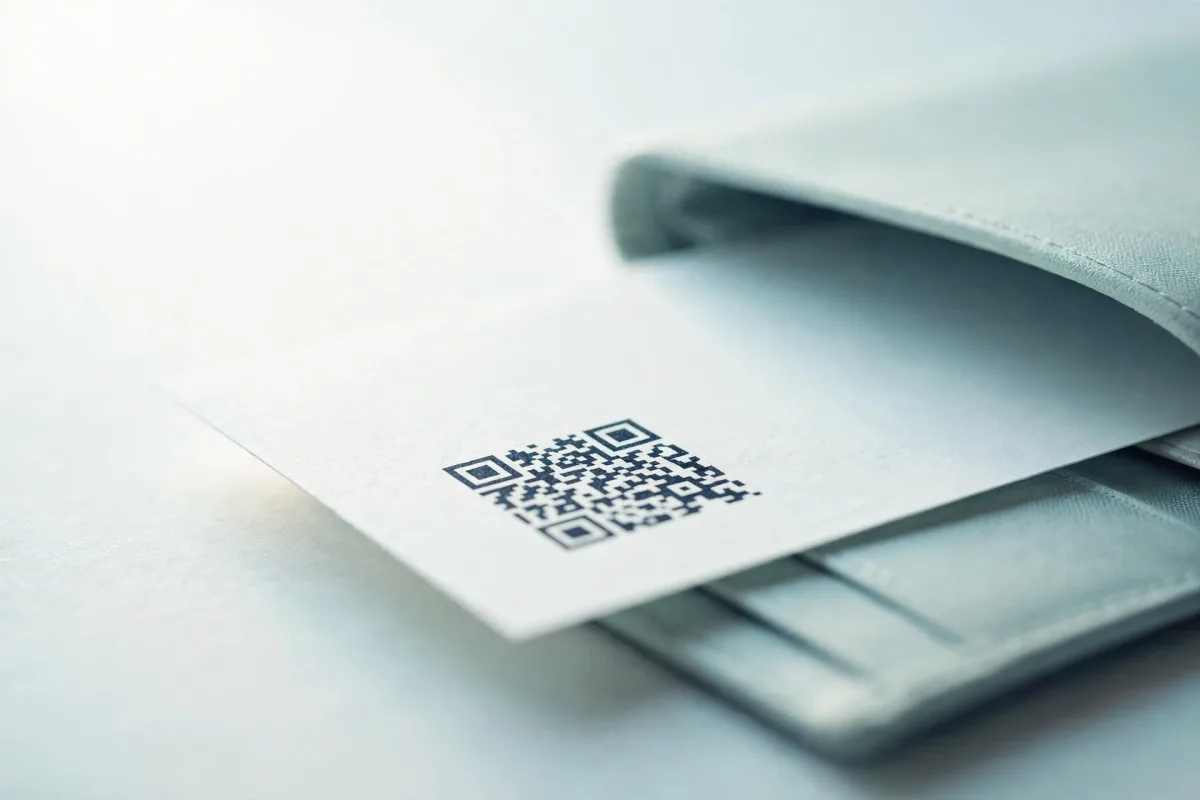
A QR code is just an image that holds a link. You make it once on a generator, download it, and drop it into your document. There is no special plugin needed for most apps — the code is inserted exactly like a logo or photo. The only real decisions are the file format and the size, both covered below.
First, generate and download the code
Before touching your document, create the code. Paste your link into a generator, choose a static code so it never expires, and download it. For documents you will mostly print, choose an SVG; for documents that stay on screen, a high-resolution PNG is fine. With OpenQR this is free, runs in your browser, and adds no watermark.
Pick the format before you download
SVG is a vector file that stays sharp at any size — ideal for print. PNG is a pixel image that can blur if enlarged. If in doubt for a document headed to a printer, choose SVG. Our format guide goes deeper.
Add a QR code to Microsoft Word
- Download your QR code as a PNG (Word handles PNG most reliably; for highest print quality, use SVG, which Word also supports).
- Place your cursor where you want the code.
- Go to Insert > Pictures > This Device and select the file.
- Drag a corner handle to resize — hold Shift to keep it square so the code is not distorted.
- Right-click and set text wrapping (for example, In Front of Text) if you need to position it freely.
Add a QR code to Google Docs
- Save the QR code as a PNG to your computer or Google Drive.
- Open your document and go to Insert > Image, then choose Upload from computer or Drive.
- Click the image and drag a corner to resize, keeping it square.
- Use the wrap options below the image to control how text flows around it.
Google Docs and SVG
Google Docs does not insert SVG files directly. Use a high-resolution PNG (at least 300 DPI for print), or build the document in Google Slides or another app if you need vector output.
Add a QR code to PowerPoint
- Download the code — SVG is excellent here because PowerPoint keeps it sharp at any slide size.
- Go to Insert > Pictures > This Device and select the file.
- Resize from a corner, holding Shift to keep it square.
- Position it where it will be readable on the projected slide — a corner with clear space around it works well.
Add a QR code to Canva
- Download the QR code as a PNG or SVG.
- In your Canva design, open the Uploads panel and upload the file.
- Drag it onto your page and resize from a corner.
- Leave clear space around it so nearby elements do not crowd the quiet zone.
Avoid placing the code on a busy background
In any app, keep the code on a plain light area with dark modules. A code dropped over a photo or coloured pattern often fails to scan, however neat it looks.
Add a QR code to a PDF
Most PDFs are created from another app, so the easiest route is to insert the code in Word, Docs, Slides or Canva and then export to PDF — that keeps it crisp. To add a code to an existing PDF, use a PDF editor: open the file, choose the option to add or insert an image, place your downloaded code, then resize and save. If your generator offers a PDF download of the code itself, that file is already print-ready vector output you can place directly.
Which format: PNG or SVG?
| Use case | Best format | Notes |
|---|---|---|
| Document for print | SVG or PDF | Vector stays sharp at any size |
| On-screen document or slide | PNG (300 DPI) or SVG | PNG is universally supported |
| Google Docs | PNG | SVG not supported on insert |
| PowerPoint / Canva | SVG | Keeps quality when resized |
The short version: use vector (SVG or PDF) wherever the app allows it and the document will be printed; use a 300 DPI PNG everywhere else. Our guide to QR code formats explains exactly when each one matters.
How big should the code be?
For a document held in the hand, a code of around 2–3 cm scans comfortably; never go below about 2 cm. If the document will be read from further away — a slide on a projector, say — scale up using the 10:1 rule: the code should be at least one tenth of the scan distance. Always keep a clear margin (the quiet zone) of at least four modules of empty space around the code, and never stretch it into a rectangle. Our sizing guide has the full detail.
Always test before you share
Export the finished document, then scan the code from the actual file or a printout with both an iPhone and an Android phone. A code that scans on screen can still fail once compressed into a PDF or shrunk on a slide.