

Use cases
QR Codes for Events and Posters: Tickets, Check-in and Programmes
By OpenQR · updated 24 June 2026
A poster on a wall has one job: get someone to act before they walk on. A QR code shortens the path from “that looks interesting” to a ticket page, a schedule or a sign-up — no squinting at a URL across a corridor. This guide covers the practical decisions that make event QR codes work: sizing by scan distance, where to put the code, what to link to, and a testing routine that catches dead codes before thousands are printed.
8 min read · Updated 24 June 2026
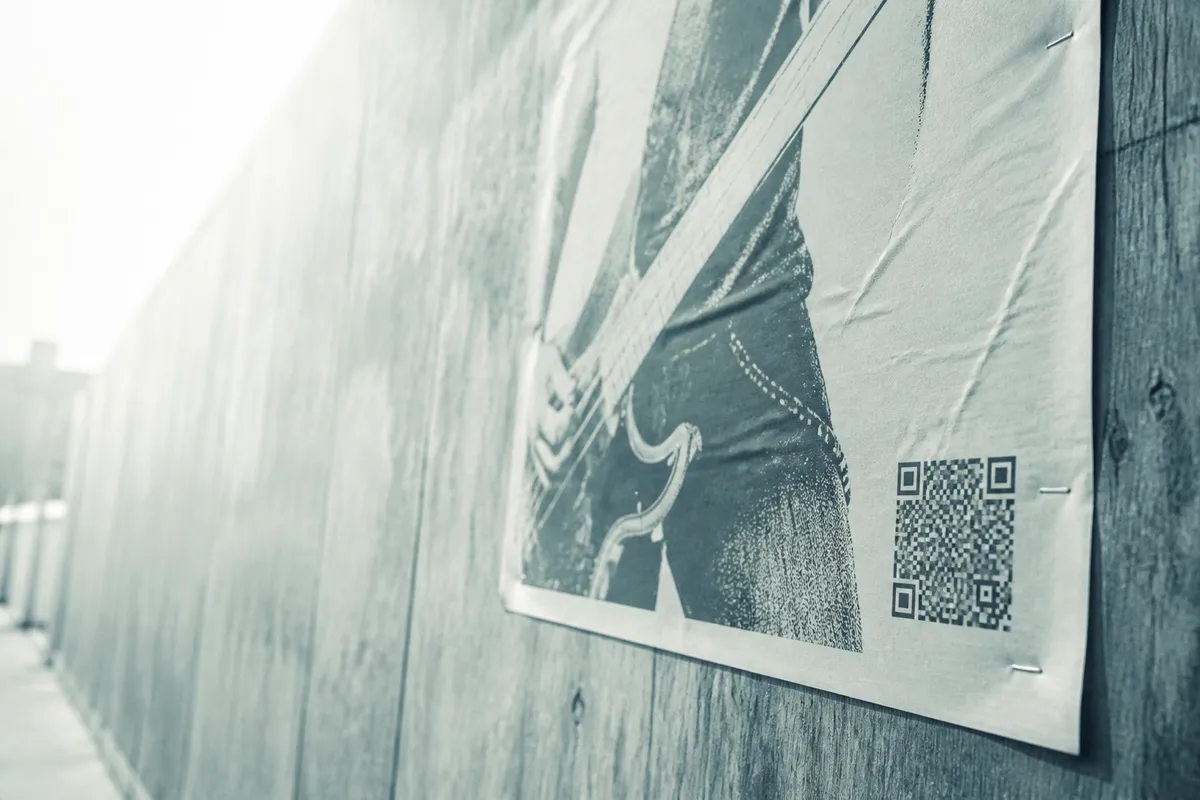
A QR code is just a scannable link. Encode the URL of your ticket page, schedule or registration form, print the code, and anyone with a phone camera can open it in a tap. Because a static code stores the address itself, it is free to create and never expires — useful when posters go up weeks before the event.
Where QR codes earn their place at events
- Posters and flyers — link straight to ticket sales or the event page while interest is fresh.
- Tickets — a code on the ticket speeds entry and can carry the attendee's details for check-in.
- Check-in and door signage — point to a digital programme, a Wi-Fi login or a feedback form.
- Printed programmes — link to speaker bios, session slides or a live schedule that prints cannot keep current.
- Stalls and stands — connect visitors to a menu, a sign-up or a follow-up offer.
One code, one job
Each code should do a single, obvious thing. If a poster needs both ticket sales and a schedule, use two clearly labelled codes rather than one that lands on a confusing menu.
What to link to
The destination should match where the person is in their journey. Someone reading a poster wants to buy or learn more; someone at the door wants the programme; someone leaving wants to give feedback. Send each scan somewhere that fits the moment, and use a clean, stable URL on your own domain so the printed code never breaks.
| Placement | Best link target |
|---|---|
| Poster / flyer | Ticket page or event landing page |
| Ticket | Order confirmation or wallet pass |
| Door signage | Digital programme or Wi-Fi login |
| Programme | Live schedule, speaker bios or slides |
| Exit / seat back | Feedback form or next-event sign-up |
Sharing event Wi-Fi
If your venue offers guest Wi-Fi, a QR code lets attendees join without typing a password. See our guide on how to make a Wi-Fi QR code to add one to door signage.
Sizing a poster QR code by scan distance
How big the code needs to be depends entirely on how far away people scan it. The reliable rule is 10:1: the printed code should be at least one tenth of the maximum scan distance. A flyer held in the hand needs only a small code, but a poster scanned from across a foyer needs a much bigger one.
| Scan distance | Minimum code size | Typical use |
|---|---|---|
| 0.3 m | 3 cm | Flyer or programme in hand |
| 1 m | 10 cm | A4 poster on a noticeboard |
| 2 m | 20 cm | A2 poster in a corridor |
| 3 m | 30 cm | Large foyer or stage-side banner |
Keep the code at roughly 2 cm minimum even for close scans, and always leave a clear margin — the quiet zone — of at least four modules of empty space around it. Phones cannot lock onto a code that touches text, a border or busy artwork. Our guide to QR code size for print covers the maths in full.
Placement that gets noticed
- Put the code where a phone can comfortably reach it — between roughly waist and eye height on standing signage, not at floor level.
- Give it a short, action-led caption: “Scan to buy tickets” beats a bare code every time.
- Avoid the very edge of a poster, where folds, frames or other posters can crop the quiet zone.
- Keep strong contrast — dark code on a light background — and avoid printing the code over a photo.
- On glossy stock, expect glare under venue lighting; a matt finish scans more reliably.
Choose the right file format
For large print — posters and banners — use a vector file (SVG or PDF) so the code stays sharp at any size. A small PNG blown up to poster scale goes blurry and may fail to scan. For tickets and on-screen use, a high-resolution PNG at 300 DPI is fine. Our format guide explains the difference. If you want event branding, you can add a logo to the centre using a higher error-correction level — see our logo guide.
Testing before you print
Run this check before any large print run — fixing a code on paper is impossible:
- 1
Scan the final artwork
Test the exact exported file, not a draft, on both an iPhone and an Android phone.
- 2
Confirm the destination
Make sure it opens the right page and the page itself is live and mobile-friendly.
- 3
Test at real distance
Print a proof and scan it from the distance attendees will actually use.
- 4
Check the quiet zone
Ensure no text or artwork creeps into the clear margin around the code.
- 5
Test under venue light
If you can, scan a proof under similar lighting to catch glare problems.
Don't change the URL after printing
A static code is locked to its URL once printed. If the destination might move, point the code at a short redirect on your own domain so you can update where it lands without reprinting.