

Use cases
QR Codes for Schools and Teachers: Classroom Ideas That Work
By OpenQR · updated 24 June 2026
A QR code on a worksheet, a display or a newsletter opens the resource in one tap, so pupils and parents never copy out a long web address. A teacher can point a whole class of tablets at the same page in seconds. This guide covers homework links, resources, parent communication, the library and displays, plus guest Wi-Fi for visitors and the safeguarding checks to make before anything is printed.
8 min read · Updated 24 June 2026
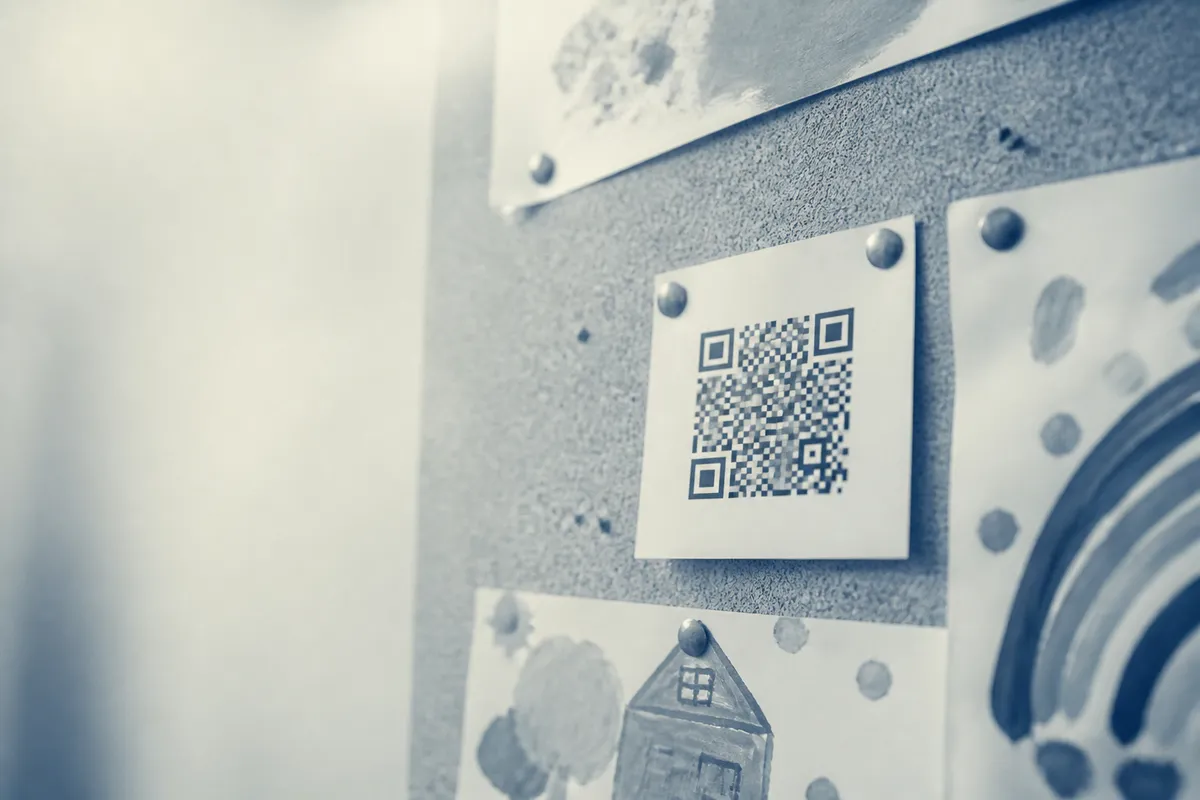
You take the web address of a homework page, a video, a reading list or a parents' form, turn it into a code, and print it or display it. Because a static code stores the address itself, it is free to create and never expires: a code on a laminated display or a textbook insert keeps working all year. OpenQR makes static codes in your browser with no watermark and no account, which keeps school budgets and printed materials clean.
Where QR codes work in a classroom
- Homework links: a code on the worksheet opens the task, a video or an online quiz, so nobody copies a URL wrong.
- Resources: point pupils to a reading, a model answer, a glossary or a revision page.
- Parent communication: link newsletters, consent forms, parents' evening bookings or the school calendar.
- Library: codes on shelves or books open a catalogue entry, a review or an author talk.
- Displays: a code on a wall display links to extension tasks or a class blog without cluttering the design.
- Worksheets: link to a mark scheme, an audio clip for languages, or a step-by-step worked example.
One code, one job
Each code should open a single, obvious resource. A homework code that lands straight on the task asks one action; a code that opens a busy portal adds navigation that pupils have to work out.
Homework and worksheets
Print a small code in the corner of the worksheet that opens the homework task, a worked example, an audio clip or a self-marking quiz. Pupils scan it at home in one tap instead of typing an address into a browser. Keep the destination on a stable web address (your learning platform, a shared document set to view-only, or a school page) so the printed worksheet keeps working. To put the code into a Word or PDF worksheet cleanly, follow our guide on how to add a QR code to a document.
What each school QR code should link to
Match the code to the reader and the moment. A pupil at a worksheet wants the task; a parent reading a newsletter wants a form or a date; a child at the library shelf wants a recommendation. Send each scan to one mobile-friendly page.
| Placement | Best link target |
|---|---|
| Worksheet | Homework task, audio clip or quiz |
| Wall display | Extension tasks or class blog |
| Library shelf / book | Catalogue entry or review |
| Newsletter | Consent form or parents' evening booking |
| Classroom door | Timetable or knowledge organiser |
Guest Wi-Fi for visitors
Schools host parents, governors, supply staff and contractors who need the guest network. A Wi-Fi QR code on a card at reception or in a meeting room lets a visitor join by scanning: no password handed out, no typing errors, and guests stay off the staff network. Our guide to making a Wi-Fi QR code walks through it, and because the code is static it costs nothing and never expires. Use this only for a genuine guest or visitor network, never the network pupils or staff use for safeguarded systems.
Displays and events
A code on a corridor display or an open-evening stand links visitors to a class blog, a virtual tour or a sign-up without crowding the design. Size the code for the distance people scan from using the 10:1 rule (at least one tenth of the scan distance) and leave a clear quiet-zone margin around it. For open evenings, fairs and productions, our article on QR codes for events and posters covers sizing and testing in full, and our size-for-print guide has the maths.
| Placement | Scan distance | Minimum code size |
|---|---|---|
| Worksheet / book label | 0.3 m | 3 cm |
| Classroom display | 1 m | 10 cm |
| Corridor display | 2 m | 20 cm |
| Hall / open-evening banner | 3 m | 30 cm |
Safeguarding and good practice
Check where every code leads
A QR code hides its destination until it is scanned, so it is only ever as safe as the page behind it. Treat the link with the same care as any resource you put in front of children.
- Only link to pages you control or have vetted, never to an unknown shortener whose destination you cannot see.
- Use HTTPS pages and check the content stays appropriate over time, especially user comment sections.
- Keep documents you link to set to view-only and free of pupil personal data.
- Label codes clearly so pupils and parents know what they are scanning before they tap.
- Test the code yourself on a school device before it goes home, and re-check links each term in case a page has moved.
For large laminated displays, export the code as a vector file so it stays sharp at any size: our format guide explains when to use SVG, PDF or PNG.
Create a free school QR codeStatic, watermark-free codes in your browser: download as PNG for worksheets or SVG for displays.