

Use cases
QR Codes for Tradespeople
By OpenQR · updated 24 June 2026
Tradespeople live on word of mouth, and a QR code is the cheapest way to turn a finished job into the next one. A code on the van, the invoice or a quote request form lets a customer review you, call you back or refer you without hunting for a number. This guide covers where codes get scanned for plumbers, electricians and builders, what each one should link to, and how to make them survive a working van.
8 min read · Updated 24 June 2026
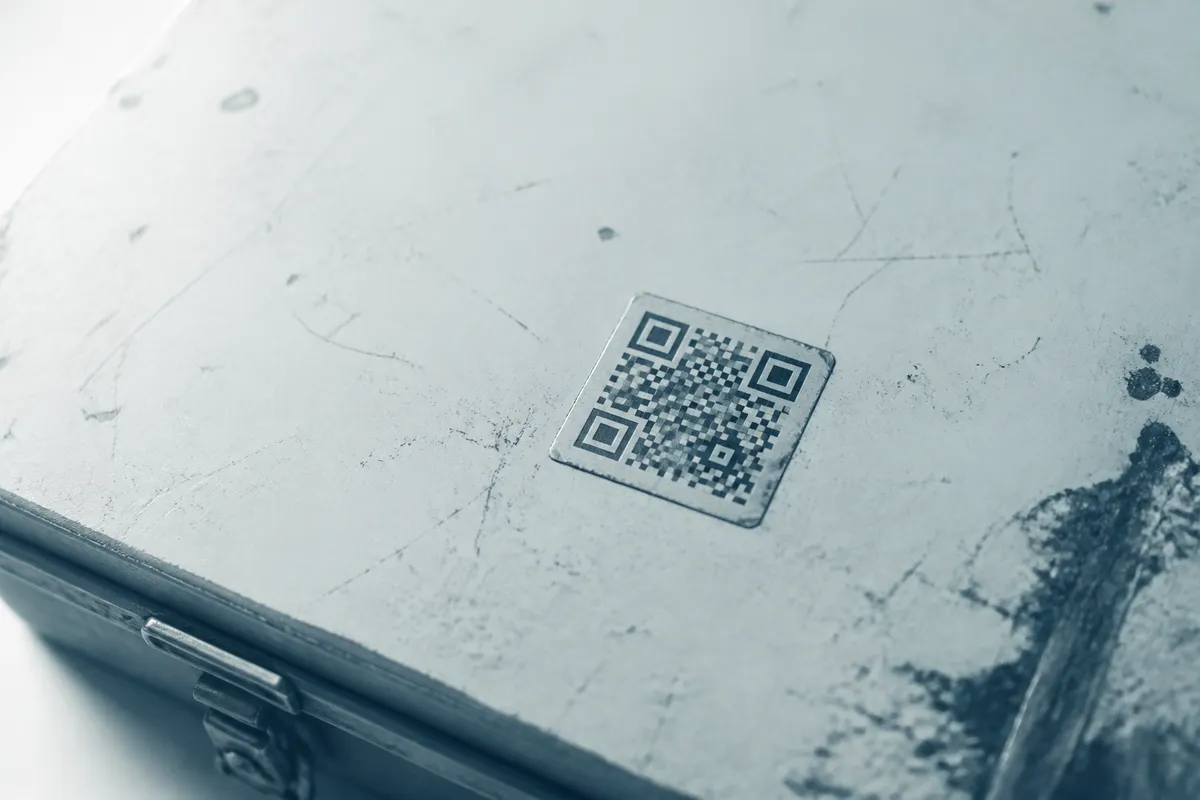
A customer points their phone camera at a QR code and it opens whatever you encoded: your review page, a quote form, your saved contact details. Because a static QR code stores that destination itself, it is free to create, never expires and keeps working for as long as the page behind it stays live. For a trade business that means no subscription and a code that lasts as long as the van decal.
Where QR codes work for a trade business
The placements that get scanned are the ones a customer sees at a moment of intent: when they are impressed by your work, holding your invoice, or thinking about a bigger job. Match the code to that moment.
- The van: a large code on the side or rear turns a parked van or a job in the street into a lead while you work.
- Invoices and quotes: a code that opens a payment page or a review request once the job is signed off; see our guide on adding a QR code to a document.
- Quote request forms: on flyers and door-drops, a code that opens an enquiry form so prospects send job details instantly.
- Reviews: a code that opens your Google or Checkatrade review page while the customer is still pleased with the job.
- Portfolio of work: link to before-and-after photos so prospects see proof of quality.
- Contact details: a code that saves your number and details straight to a phone, ideal on business cards.
What each trade QR code should link to
The common mistake is sending every scan to a generic homepage. The person scanning has a specific reason based on where they saw the code, so the destination should match it.
| Placement | Best link target | Why |
|---|---|---|
| Side of the van | Quote request form | Passers-by are deciding whether to enquire |
| Invoice | Payment page | Lets the customer pay on the spot |
| After sign-off | Review page | Catches the customer while they are happy |
| Flyer / door-drop | Portfolio of past jobs | Proof of quality wins the call |
| Business card | Saved contact details | One tap to add you to their phone |
| Quote document | Your website or testimonials | Builds trust while they decide |
Put the review link on the final invoice
Most satisfied customers never leave a review because finding the page is fiddly. A code on the final invoice that opens your review page directly removes those steps: the customer taps straight into the review form instead of searching for you.
On-the-job uses
Codes are not only for marketing. On a job you can use them to hand over information cleanly: a sticker on a boiler or consumer unit linking to service records or a maintenance reminder, a label that opens an appliance manual, or a code on a finished installation that lets the customer book the next annual check. Each one is a static link to a stable page you control, so it keeps working long after you leave.
Use a stable link you control
Point codes at a permanent URL on your own domain rather than a long tracking link. If the destination changes, update the page behind that URL and the printed code on the van or invoice keeps working: no reprint needed.
Sizing a code for a van
A van is scanned from across a street or a driveway, so the code must be far bigger than one on a card. The reliable guide is the 10:1 rule: the printed code should be at least one tenth of the scan distance. Someone reading it from three metres needs a code around 30 cm across.
| Scan distance | Minimum code size | Typical placement |
|---|---|---|
| 0.3 m | 3 cm | Business card or invoice |
| 1 m | 10 cm | Flyer or quote document |
| 3 m | 30 cm | Side of the van |
| 5 m | 50 cm | Rear of the van in traffic |
Never go below about 2 cm, and always leave a clear margin of empty space (the quiet zone) of at least four modules around the code. On a van, keep strong contrast and avoid placing the code over a busy graphic or a curved panel. For the full method see our size guide, and use a vector file so large decals stay sharp, as our format guide explains.
Creating a trade QR code from start to print:
- 1
Pick one job per code
Decide exactly what it does (quote, review, payment, contact) and confirm the exact URL is live.
- 2
Generate a static code
Paste the link into the URL generator and create a free, no-expiry code.
- 3
Download in vector for the van
Use SVG or PDF for van decals and large signage; a 300 DPI PNG for cards and invoices.
- 4
Size it to the placement
Apply the 10:1 rule and keep the quiet zone clear of graphics and the panel edge.
- 5
Test on real phones
Scan with an iPhone and an Android at the real distance before the decal or print run is ordered.
Mistakes to avoid
- Printing van codes too small to read from the road: size them for at least three metres.
- Sending every scan to the homepage instead of the page that fits the placement.
- Placing the code over a curved panel, busy graphic or low-contrast colour.
- Leaving no prompt beside it: add a line such as “Scan for a free quote”.
- Forgetting to re-test the link after a website change, leaving printed codes pointing nowhere.
For the card-level approach, see our guide to QR codes for business cards, and for the wider picture our article on QR codes for small businesses. If a code refuses to scan in the field, our piece on why a QR code might not scan covers the quick fixes.
Create a free trade QR codeFree, static and watermark-free: download as SVG for van decals or PNG for invoices.