How-to
How to run a QR code campaign
By OpenQR · updated 13 September 2026
utm_source tag, so scans stay separated by placement, while the set stays one thing you can repoint with a single edit. This guide walks through creating one, what the codes encode, and how to read the numbers honestly.8 min read · Updated 13 September 2026
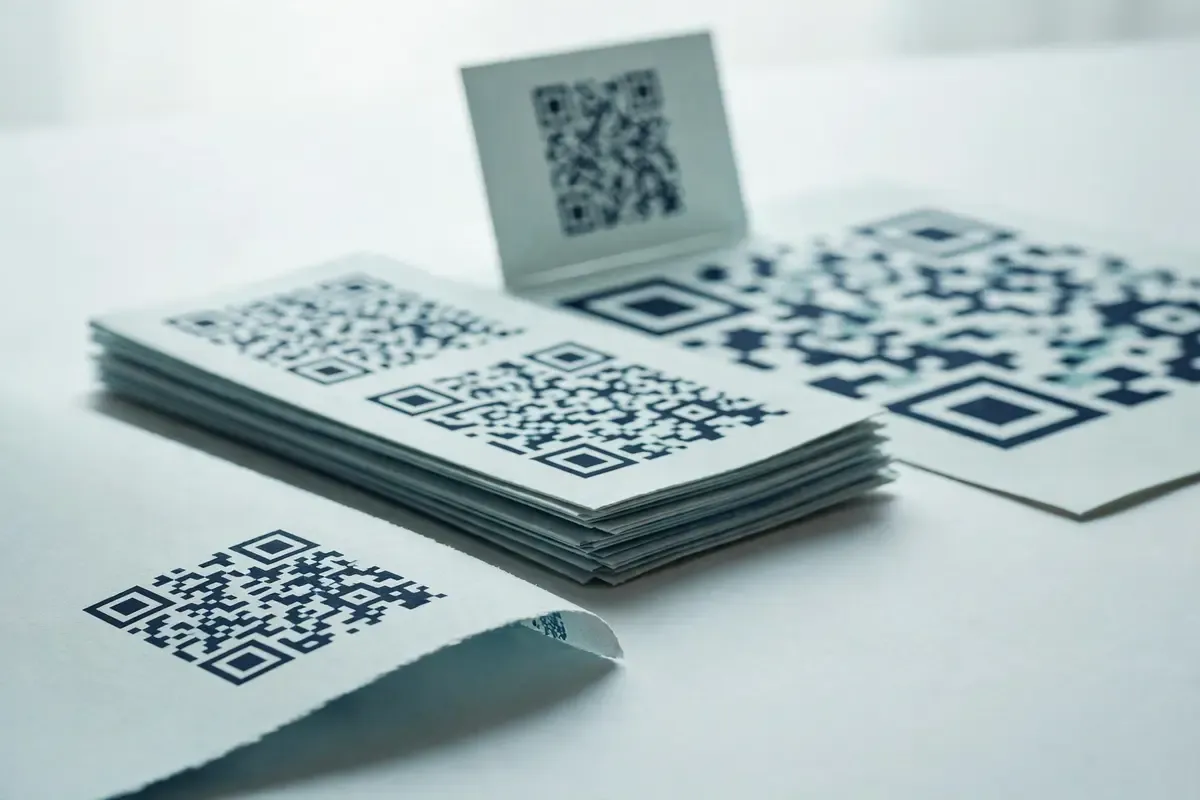
One QR code on its own does not need a campaign. If a poster has one destination and it is the only place the offer lives, make one dynamic code and stop there. A campaign earns its keep the moment the same offer appears on more than one printed piece, because a code shared across placements can only ever tell you the campaign as a whole got scanned, not which piece of paper was in someone's hand when it happened.
What a campaign is
A campaign is a named set of dynamic codes that share one destination URL. Each placement in the set is a real code with its own oqr.to short URL, its own scan count and its own label, and the campaign page keeps them together: change the shared destination once and every placement that follows the campaign link repoints, printed patterns unchanged. The placements stay comparable because they were born comparable: same destination, same tagging scheme, one creation flow.
- The same offer on a poster, a flyer and a shop window, so you can see which placement actually pulled
- The same leaflet across campuses, towns or delivery rounds, one code per round
- A rerun of last season's set, kept as its own campaign so this season's numbers do not blend into it
- One placement that needs a different landing page, given its own link without leaving the set
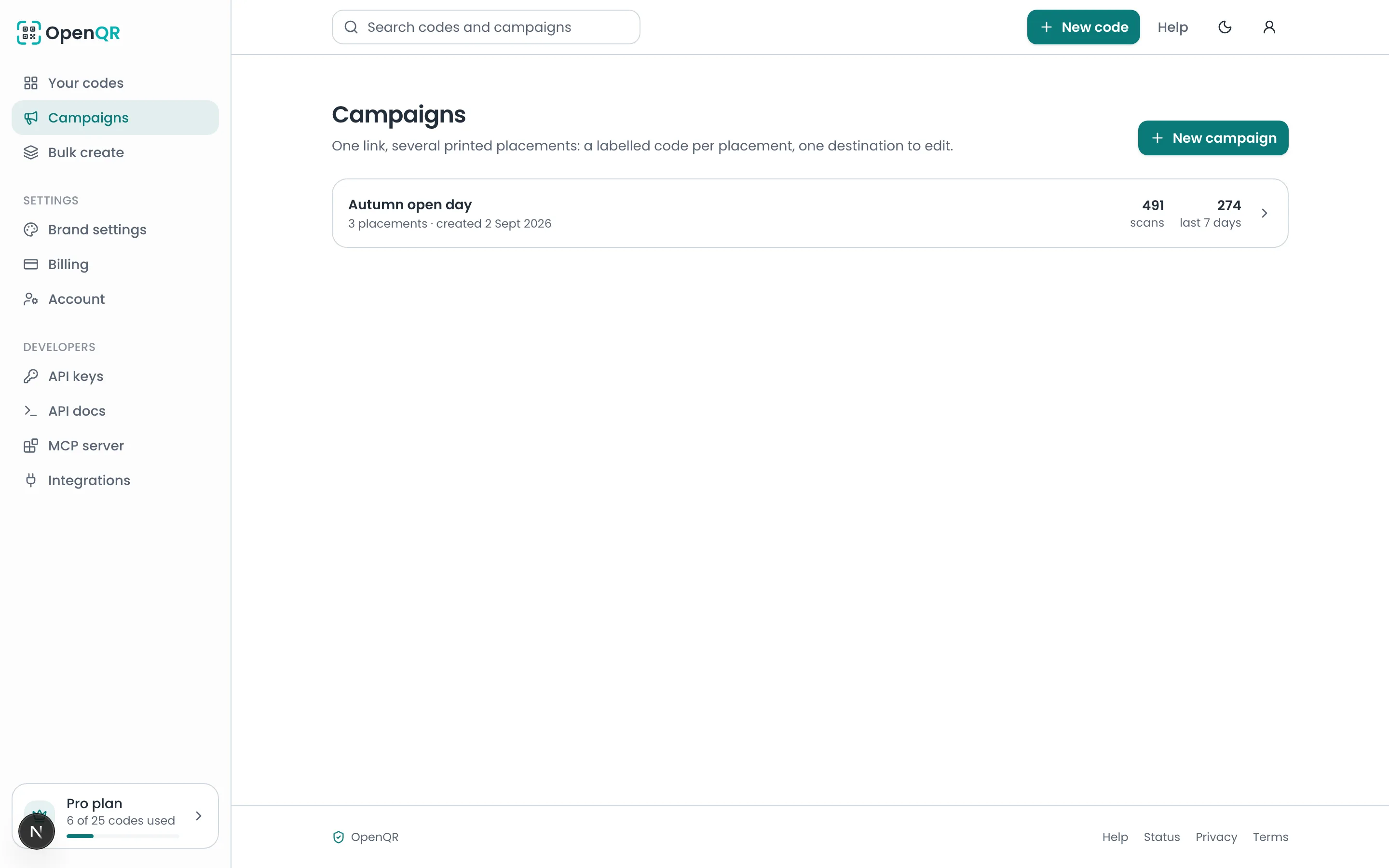
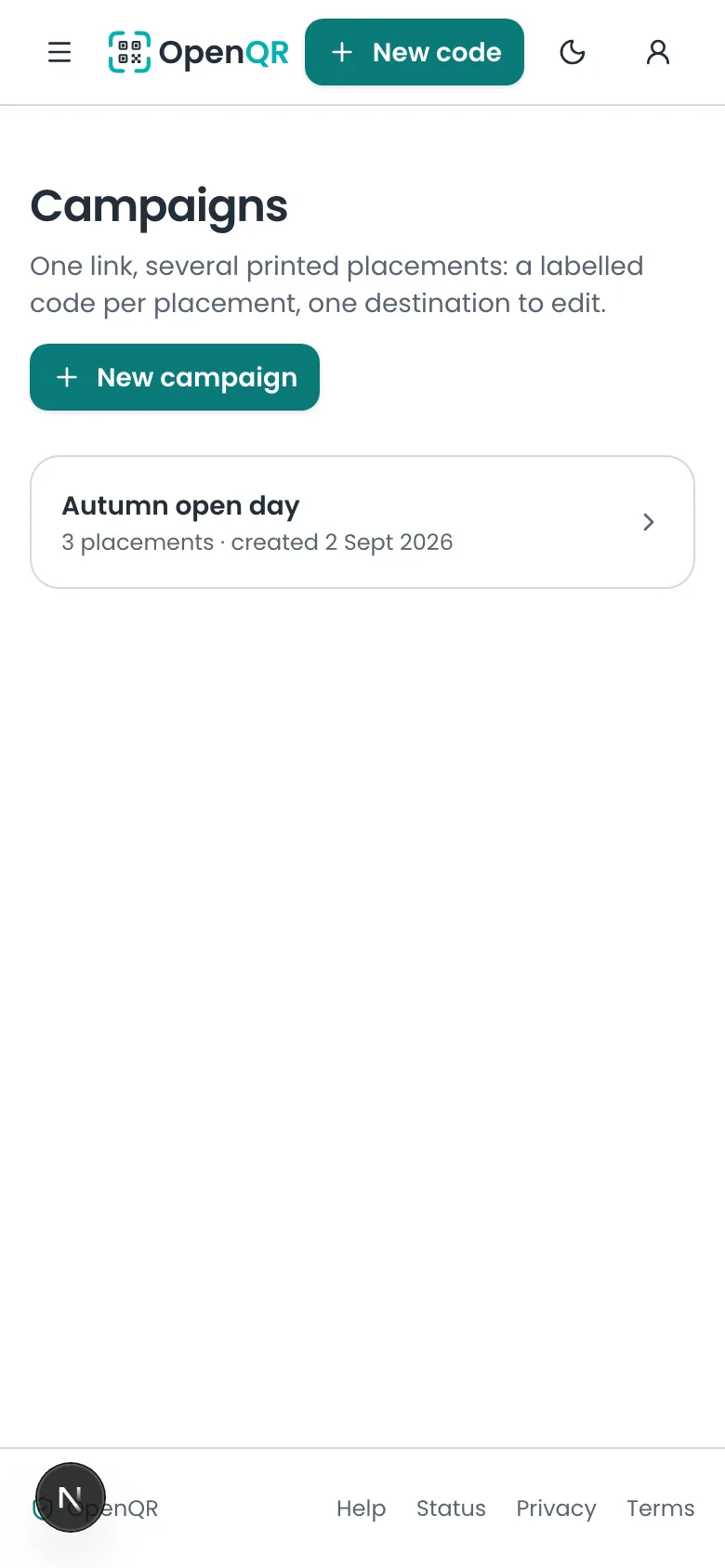
Campaigns live under their own entry in the dashboard sidebar. The list is deliberately thin: name, placements, created date and the two numbers you act on, total scans and the last seven days. Everything else lives on the campaign page itself.
Creating a campaign
From blank form to printable set in one screen.
- 1
Name the campaign after the offer
The name becomes the utm_campaign tag every placement carries, so pick something you will still recognise in your analytics next quarter: “Open day 2027”, not “Campaign 3”.
- 2
Paste the shared destination
The one page every placement sends people to. Change it later and the whole set follows; nothing is baked into the printed pattern.
- 3
List the placements
Type them one by one, or paste a list with one placement per line. Paste mode is the fast path when the media plan already exists as a list somewhere.
- 4
Check the preview table
The wizard shows the final link each code will encode, including any existing utm values the campaign tags replace. A collision is a visible decision, never a silent overwrite.
- 5
Set a style for the whole set
Optional. A saved theme from your brand settings applies to every code in the set, so the codes look like one family on paper.
- 6
Read the allowance line, then create
Before anything is committed the wizard states how many active editable codes the set creates, how many your plan allows and how many you have free.
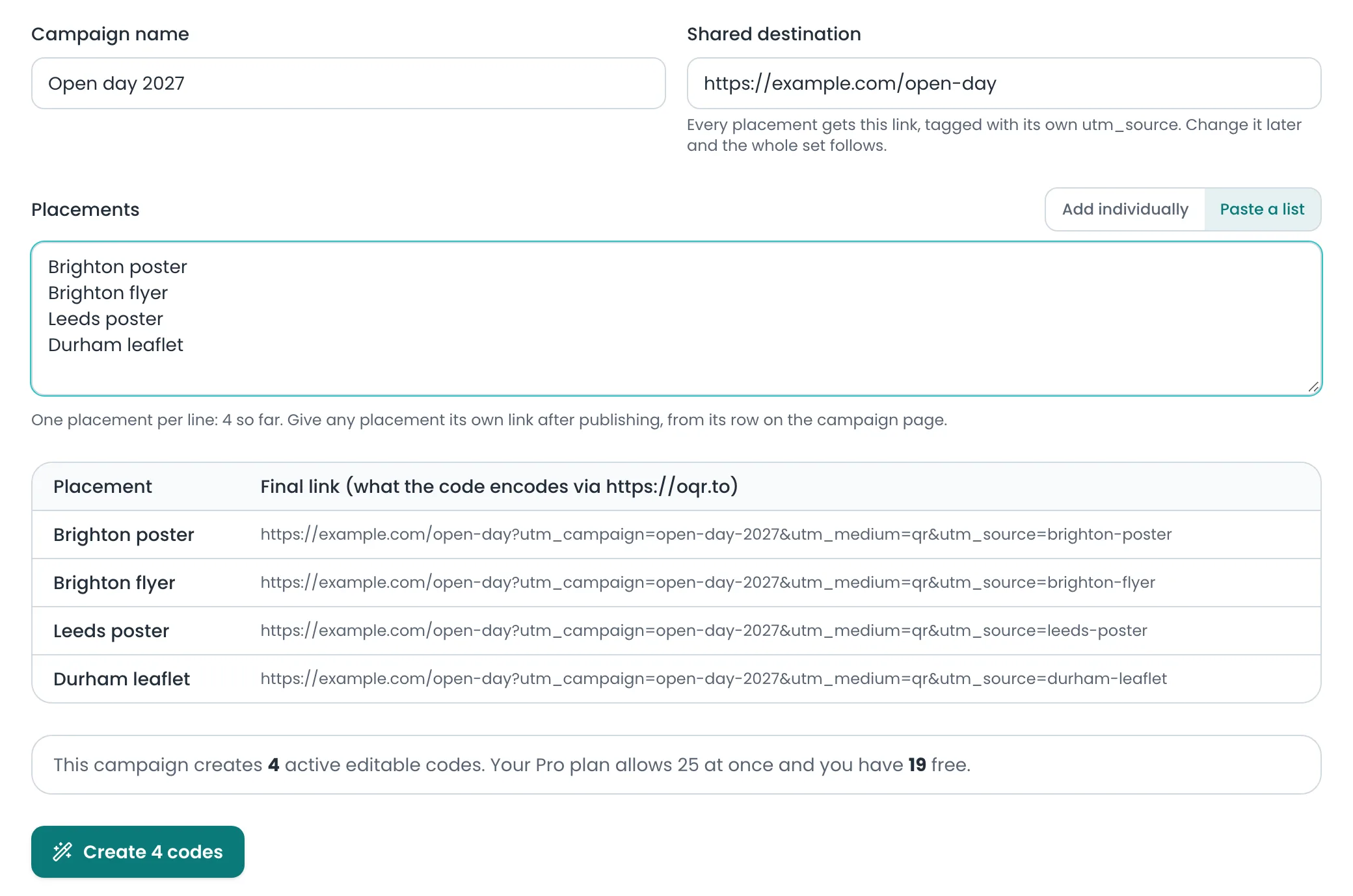
That allowance line is deliberate. A campaign of five placements is five active editable codes against your plan's allowance, and the wizard refuses, with the upgrade path next to it, when the set does not fit. Nothing is half-created: either all the codes exist or none do.
What each code encodes
Every placement is a dynamic code: the printed pattern encodes a short URL on oqr.to (or your branded subdomain host once you have claimed one, an account-level setting that applies to every short link and QR download), and the redirect behind it carries the real destination. A scan is counted the moment a phone resolves the code.
The destination each placement points at is your shared URL tagged with the campaign's consistent scheme: utm_campaign from the campaign name, utm_medium fixed at qr, and utm_source from the placement label. For the open day set that looks like:
Brighton poster:  https://example.com/open-day?utm_campaign=open-day-2027&utm_medium=qr&utm_source=brighton-poster
Brighton flyer:   https://example.com/open-day?utm_campaign=open-day-2027&utm_medium=qr&utm_source=brighton-flyer
Leeds poster:     https://example.com/open-day?utm_campaign=open-day-2027&utm_medium=qr&utm_source=leeds-poster
Because utm_campaign is identical across the set, your own analytics rolls every placement up into one campaign report; because utm_source differs, it can still split them apart. The tags are set at creation and stay stable: renaming a campaign or placement later changes what you see in the dashboard, not the tags already printed.
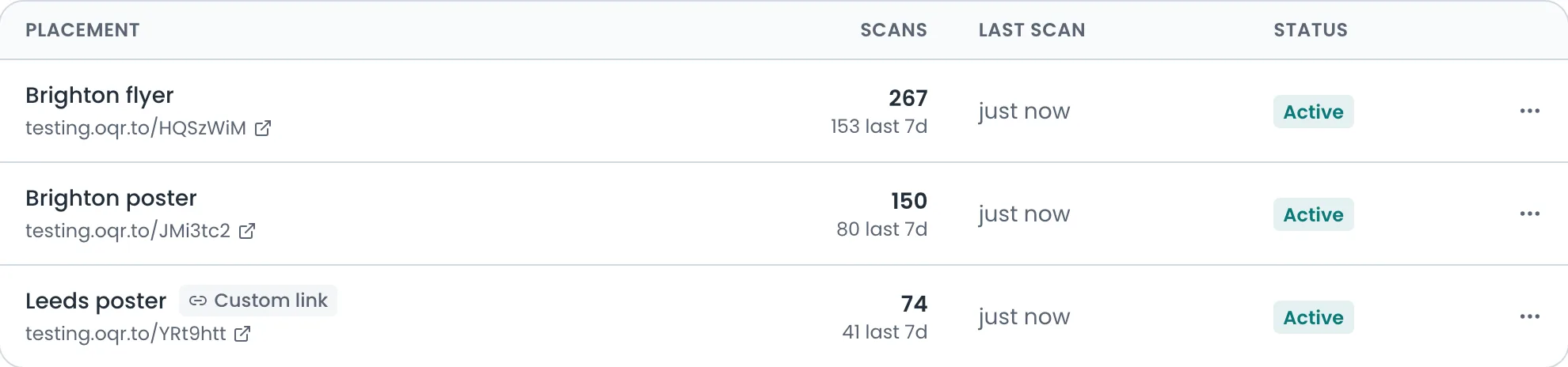
Any placement can be given its own link, a regional landing page for the Leeds print run, say, while staying in the set. It stops following the shared destination, keeps its own scan count, and shows a Custom link badge so the exception is visible at a glance.
Reading the numbers honestly
The campaign page totals the set, charts the daily series across the whole campaign, and breaks out each placement's scans, its last seven days and its last scan time. The window and the detail level follow your plan: every plan sees headline counts, the daily series and country; paid plans add device, referrer, region and town or city detail and a longer history window.
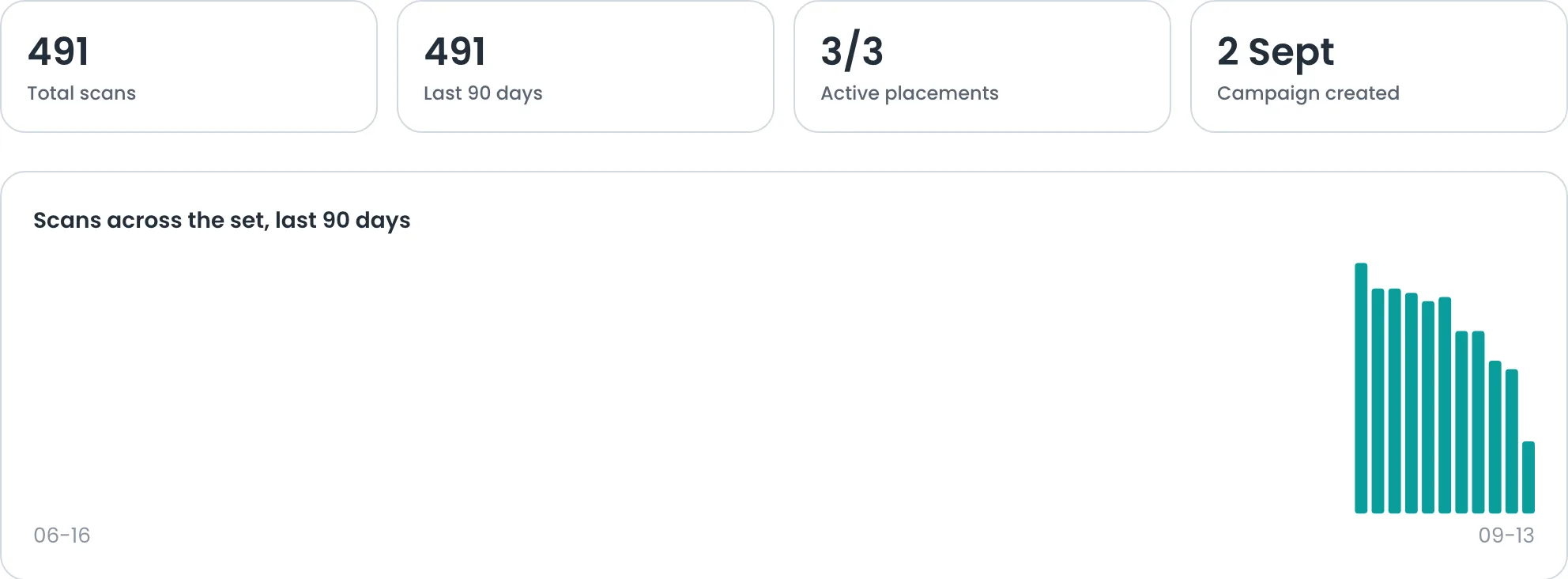
Three things a scan number is not. It is not unique people: a phone that scans the flyer twice is counted twice. It is not a page view: what visitors did after landing is your destination's analytics, which is exactly what the utm tags carry the split for. And the campaign table counts scan requests on each placement's QR code; visits that arrive through a placement's custom short links show on that code's own page instead.
Scan data is aggregated as it is written: no scanner is identified, no cookie is set, and geography is never named below five scans in a window. That is what lets you hand a campaign report to a client without a privacy conversation first, and it is the same reason OpenQR runs no consent banner.
Changing things after you print
The point of a shared destination is that print is permanent and the link is not. Everything below happens on the campaign page without reprinting anything:
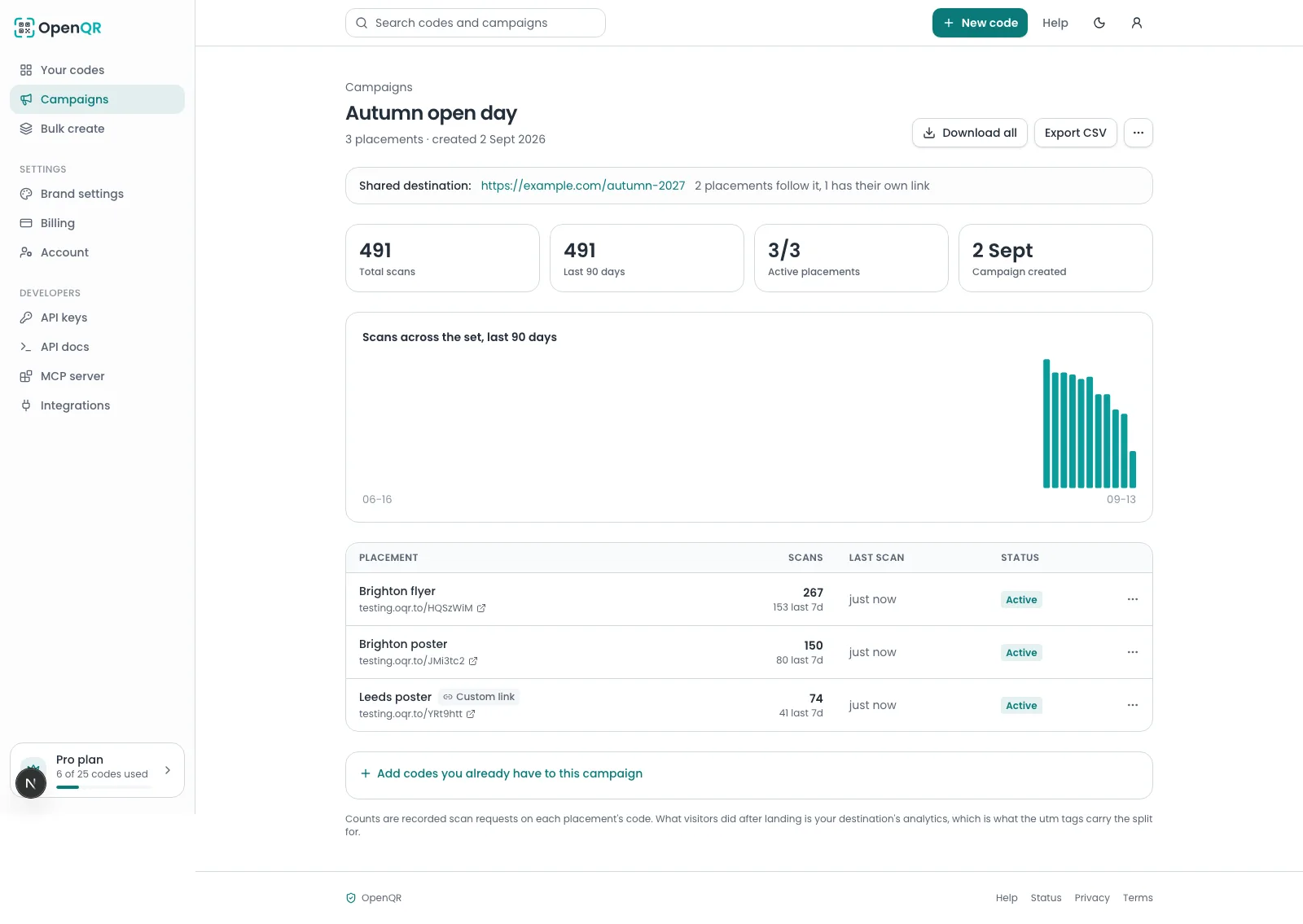
- Edit the shared destination and every placement that follows it repoints in one change; placements with their own link are left untouched
- Pause a placement when its print run ends: scanners see a holding page rather than your destination, the slot frees up, and reactivating restores it
- Rename the campaign or a placement for clarity; tags already printed keep their original value
- Duplicate the campaign to start next season's set with the same placements
- Import existing dynamic codes into the campaign, so a set you built before the feature still groups
- Download every code as a ZIP of PNG or SVG files, one per placement, named after its label, plus a manifest for the print file
- Export the numbers as CSV for a one-off report
- Delete the campaign without killing the codes: they stay live, move back to Your codes ungrouped, and keep their scan history
What a campaign costs
Campaigns are free to use. What a campaign consumes is your plan's allowance of active editable codes, one per placement, and the wizard shows that maths before you commit. The free plan's 1 dynamic code covers a single-placement campaign; a set with more than one placement needs a paid plan, and it is worth deciding that before the print order goes in rather than discovering it when the second code will not save.
| Plan | Active editable codes | Analytics window | Detail |
|---|---|---|---|
| Free | 1 | 7 days | Headline counts, daily series, country |
| Pro (£9/mo) | 25 | 90 days | Device, referrer, region, town or city, day-part heatmap |
| Business | 100 | 365 days | The same detail over a longer window |
A campaign never needs a second code for the same placement: pausing frees the slot, and deleted campaigns hand their codes back. Static codes remain free and unlimited, but a static code carries no scan count, so it has no place in an attribution set.
Campaigns and the API
The campaign grouping is a dashboard feature; the REST API and MCP server do not have campaign endpoints yet. The placements are ordinary dynamic codes, so everything you already automate keeps working: list and edit placements through the dynamic-code endpoints, read a placement's scans through its own scans endpoint, and use the campaign page's CSV export when a report needs the set as one file. Campaign-level endpoints are on the roadmap.