
Payments
How to create a PIX QR code
By OpenQR · updated 20 October 2026
7 min read · Updated 20 October 2026
Step 1: Get your PIX key right
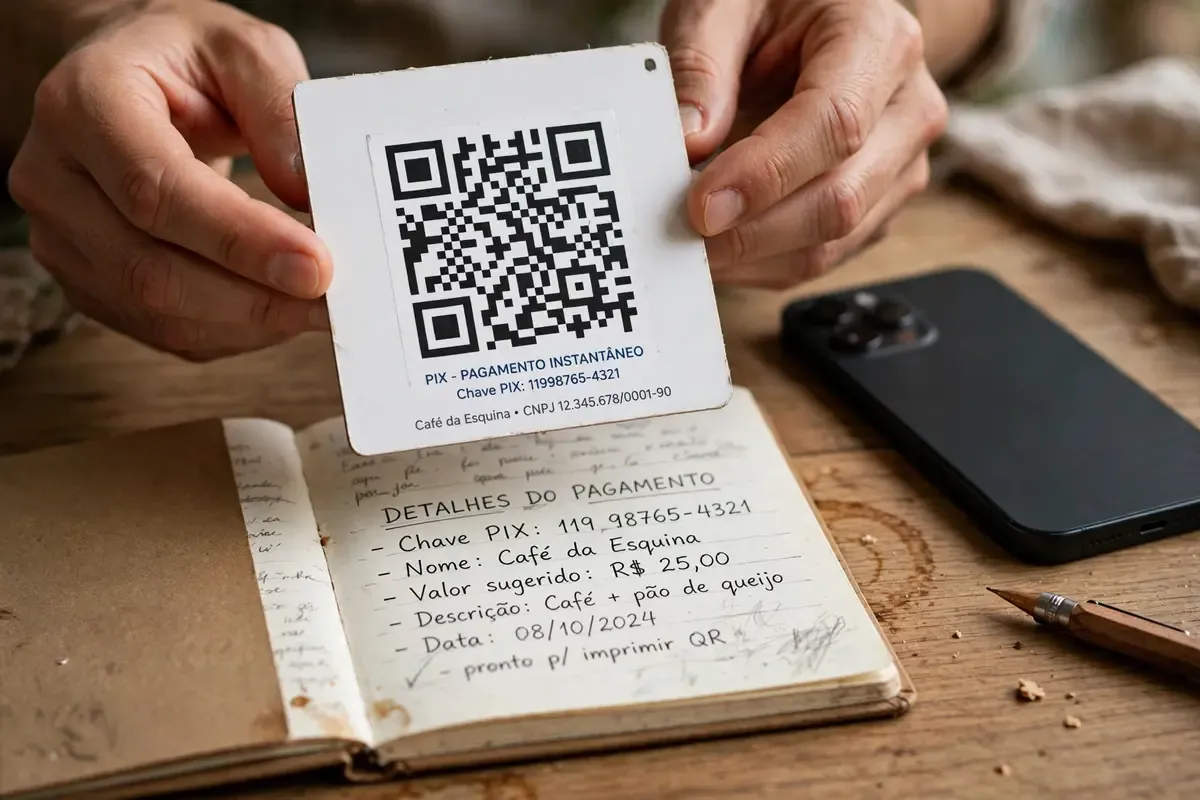
Your PIX key is the address the money arrives at, and it must match what is registered with your bank. There are five key types, and each has a testable shape:
| Key type | Shape | Example |
|---|---|---|
| CPF | 11 digits, two check digits | 111.444.777-35 |
| CNPJ | 14 digits, two check digits | 11.444.777/0001-61 |
| Any address registered as a key | fulano@example.com | |
| Mobile | +55 followed by 10 or 11 digits | +5511999999999 |
| Random (EVP) | 36-character UUID | 123e4567-e12b-12d1-a456-426655440000 |
CPF and CNPJ keys carry check digits — two numbers at the end computed from the others. A generator that validates them is doing you a real service: a mistyped CPF produces a code that looks perfect and pays nobody, and the payer only finds out when their bank cannot resolve the key. If you do not know your key, your bank app lists it under PIX keys; the random key is the safest to publish because it reveals nothing about you.
Step 2: Enter name and city
The recipient name (up to 25 characters) and city (up to 15) are what the payer sees on the confirmation screen, so they are worth getting right — they are how someone verifies they are paying the right stall. Both fields accept plain ASCII only: São Paulo becomes Sao Paulo, José becomes Jose. A generator should show you the converted value before you download, not silently rewrite it.
Step 3: Decide on the amount
Leave the amount empty and the payer types whatever they are paying — right for tips, donations and open bills. Set an amount and every scan opens pre-filled — right for a fixed menu item or a service fee. The decimal separator is a dot: 10.50, never 10,50. If you paste a value with a comma, a good generator converts it; a bad one encodes a broken amount.
One code per price beats one code with a price
For a printed price list, generate one code per item with its amount pre-filled and label them. Payers trust a code that already knows the number, and you spend less time checking screens at the till.
Step 4: Copy the copia e cola string too
The copia e cola string is the same payment payload as text. When your generator offers it alongside the image, take both: the image goes on the plaque or sticker, the string goes into your WhatsApp catalogue, invoices and Instagram bio. Pasting it into any bank's payment screen pre-fills the payment exactly like a scan would.
Step 5: Scan-test before you print
Scan the finished code with your own bank app and confirm three things: the key resolves to your account, the name shown is yours, and the amount is what you intended. Then print. A code that passes this test keeps working for as long as the key stays registered — there is nothing to renew, host or subscribe to. For print sizing, the minimum scan distance rule of thumb is distance-to-code of ten times the code's width; the print size guide covers the details.
The three failures, and their fixes
| Symptom | Cause | Fix |
|---|---|---|
| Bank says the key cannot be resolved | Typo in the key, or key removed from the account | Re-enter the key; validate check digits before printing |
| Name shows mangled characters | Accents carried into an ASCII field | Use the converted name the generator shows |
| Amount wrong or rejected | Comma decimal separator, or extra spaces | Use a dot: 10.50 |
| Code scans but app reports a checksum error | The image was edited or re-encoded after generation | Regenerate; never edit the image contents by hand |
The free PIX QR code generator on this site validates CPF and CNPJ check digits, converts accents visibly, normalises comma amounts and produces the QR and the copia e cola string together — built entirely in your browser, no sign-up. For what each field actually is, read what a PIX QR code is; for how PIX compares with the eurozone's EPC and India's UPI, see payment QR codes compared.