

Company
The QR generator ChatGPT users can trust
By OpenQR · updated 18 November 2026
More people arrive at OpenQR from ChatGPT than from any other route, and that has been true for months. Now the connection runs both ways: OpenQR connects to ChatGPT, so you can make a QR code without leaving the chat. This post explains the trust case first, then shows the connection in four steps.
4 min read · Updated 18 November 2026
QR codes without leaving the chat
Once connected, ChatGPT can do the QR work for you. Ask it to make a QR code for this link, or create an editable code for our spring sale page, and it builds the code through OpenQR and hands you the image. Ask it later how many scans has the sale code had, and it reads the count. The editable codes live on OpenQR's redirect network, so you can ask ChatGPT to point them somewhere new without reprinting anything.
The connection uses an open standard called MCP (the Model Context Protocol), which is how tools safely plug into ChatGPT. OpenQR runs the server; ChatGPT calls it. You approve the pairing once, in your browser, on OpenQR's own page.
How to connect, step by step
You need a free OpenQR account (an email address, no password) and a ChatGPT plan that allows custom connectors.
- 1
Start the connector in ChatGPT
In ChatGPT, open your settings and find Plugins (or Apps and Connectors, depending on your version). Choose to add a custom MCP server and paste
https://openqr.uk/mcp. - 2
Pick OAuth
When ChatGPT asks how the server authenticates, choose OAuth. That is what sends you to OpenQR's own approval page next.
- 3
Approve on OpenQR
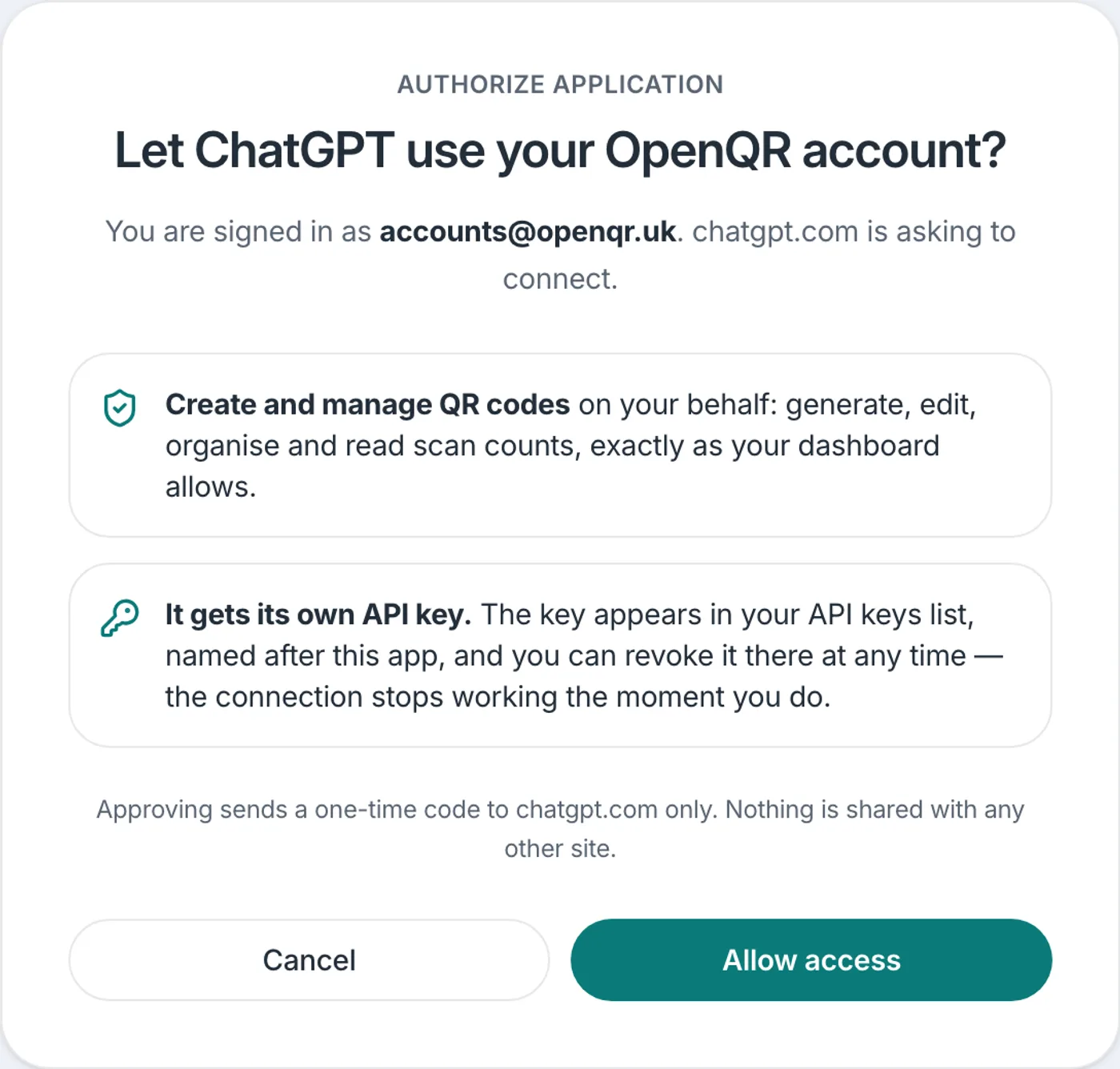
Your browser opens the OpenQR page below. Sign in with your email (a one-time sign-in link, no password) and choose Allow access.
- 4
Ask for a QR code
Back in ChatGPT, try: make a QR code for openqr.uk. ChatGPT asks before it creates anything on your account, and the code appears in the chat.
Why you can trust the connection
ChatGPT never sees a password. OpenQR accounts do not have passwords; the sign-in is a one-time link to your email. The connection itself gets its own API key, created only when you click Allow, named after the app that asked for it.
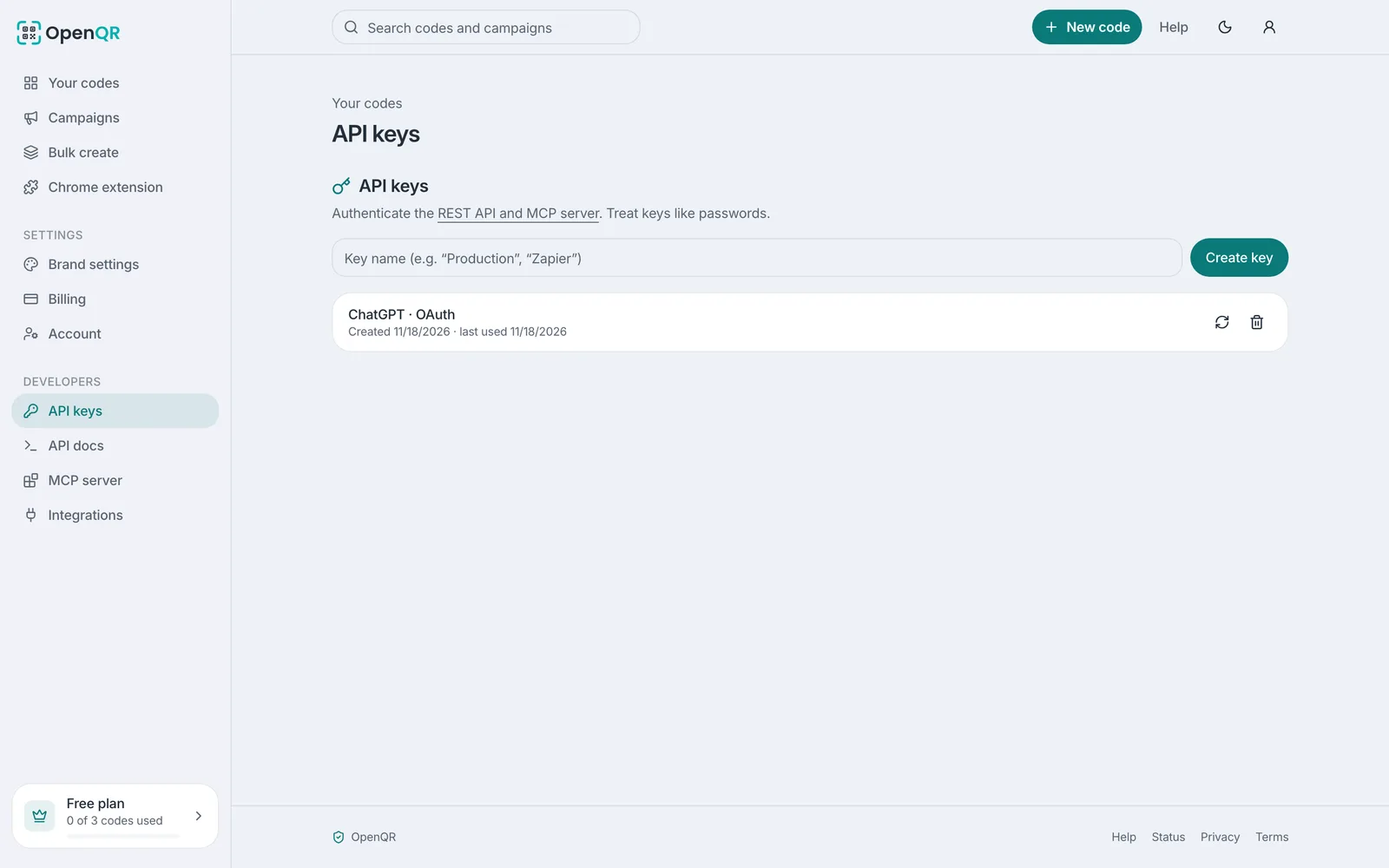
One click revokes it. The key sits in your OpenQR dashboard under API keys. Delete it there and ChatGPT loses access the moment you do. No email, no waiting.
Nothing happens silently. ChatGPT asks for confirmation before it creates or changes anything on your account. The approval screen also tells you the truth about reach: a connected app can create and manage QR codes and read scan counts. It cannot touch your email, your billing or anything else, because the key opens exactly one door.
Why people trust OpenQR itself
- Open source. The generator's code is public. Anyone can read how codes are made; nothing is a black box.
- No ads, ever, for the people who scan. Someone scanning your code never sees an interstitial, a countdown or a consent wall from us. The code goes where you pointed it.
- Printed codes never expire. A static code carries its content in the pattern itself. A dynamic one keeps redirecting for as long as the print exists.
- Scan counting without identifying people. We count scans by country, device and time, never by person. No names, no postal codes, nothing that follows an individual.
- Free without a catch. The generator is free with no watermark, and unlimited static codes need no account at all. Editing dynamic codes is what the paid plans fund.
This works with other assistants too
The same server connects Claude, Cursor and Cline with one URL and a key. The MCP guide has each client's exact steps.