

Company
A new way to design your QR code
By OpenQR · updated 17 November 2026
OpenQR has a new design panel. It went live on 16 November 2026 and it gathers everything about a code's look into one place: colour presets, the pattern of the small squares, corner shapes, a logo, a border, a caption under the code and an arrow that points at it. The button is called Customise design. This post shows where to find it and what each part does.
3 min read · Updated 17 November 2026
Where the panel opens from
On the generator at openqr.uk, type your link. A live preview of your code appears on the right, and the Customise design button sits under that preview. Click it and the panel slides in, with the preview at its top updating as you change things.
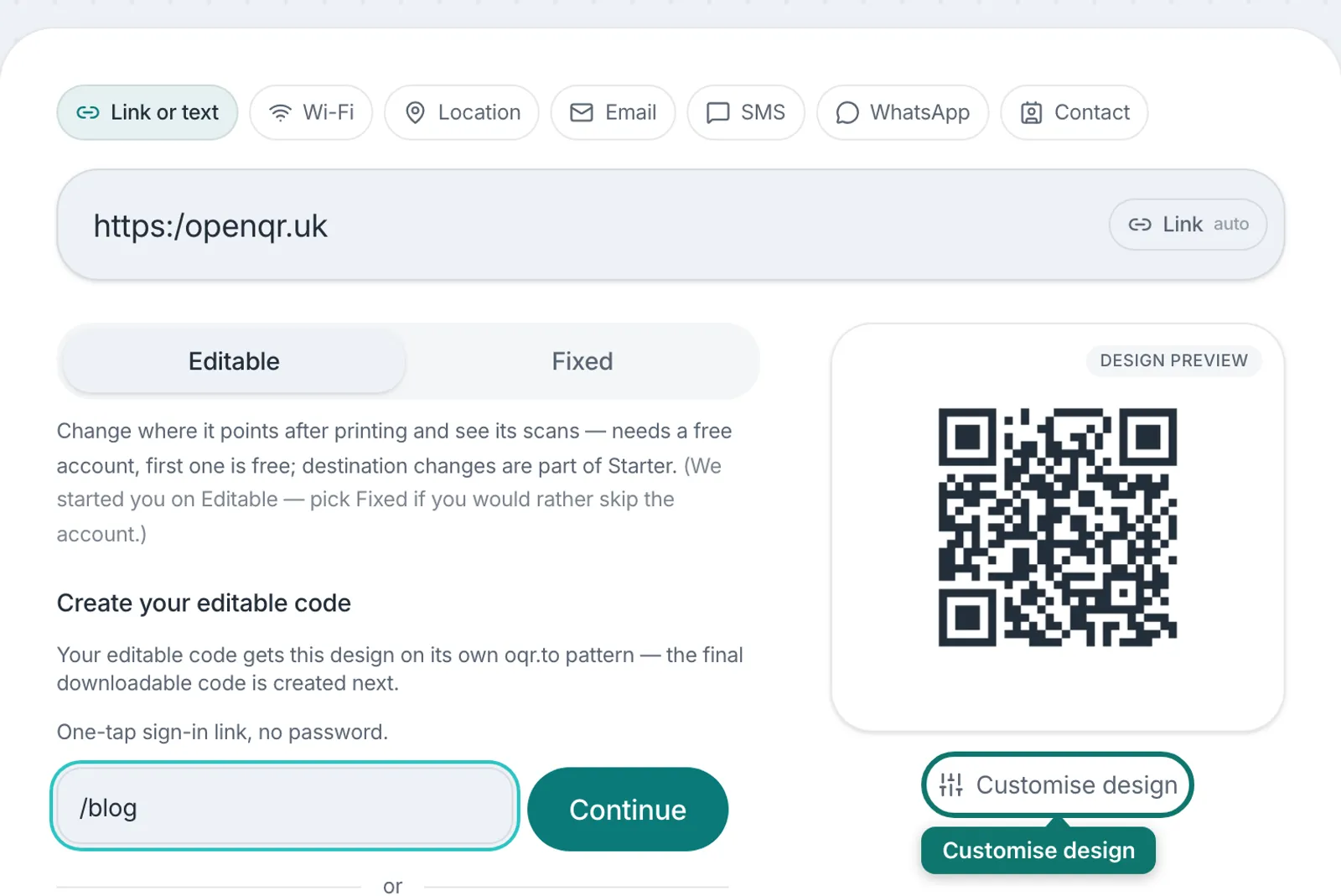
No account is needed. The panel is part of the free generator, like every download on the site. If you save codes to a free dashboard, the same panel is on every code there: open a code's download options and click Customise design.

Colours, patterns and corners
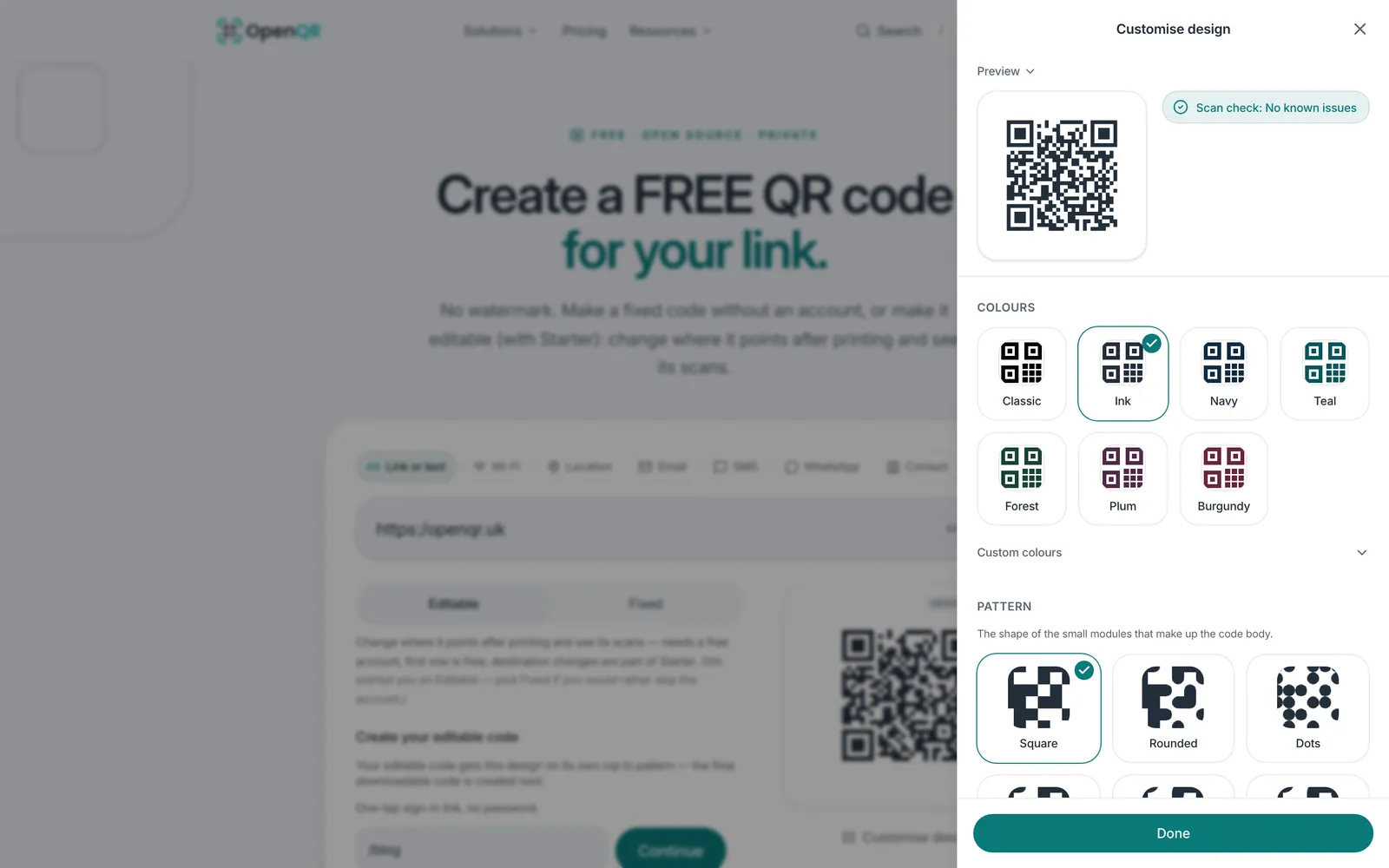
Colour presets come first: Classic, Ink, Navy, Teal, Forest, Plum and Burgundy. One click sets both the code colour and the background. Custom opens two colour pickers, a transparent background and a gradient.
The pattern tiles change the shape of the small squares that fill the code. The corner marker rows shape the three large squares a scanner locks onto first. Square corners scan most broadly, so they stay the default for new codes.
A logo goes in the middle: PNG, JPG, SVG or WebP up to 2 MB, with a size slider. New logos start small on purpose. A large logo is the most common reason a styled code stops scanning, so the panel holds it back until you enlarge it yourself.
Borders, captions and arrows
The frame section holds three switches: Border, Caption text and Arrow to the code. Turn on any mix you like, or none.
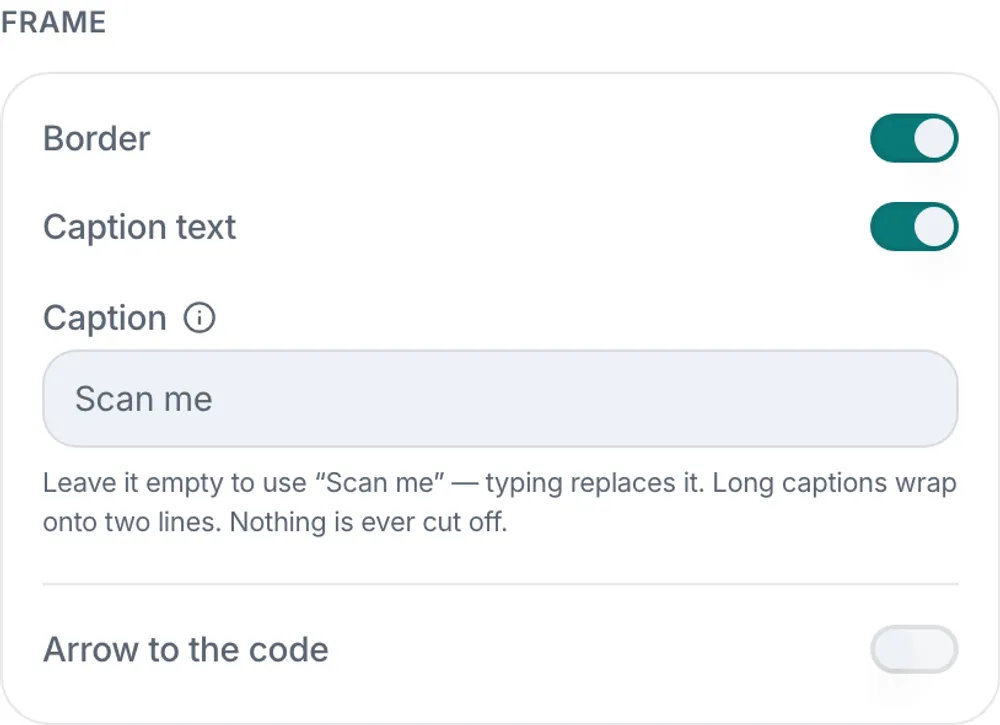
The caption starts as your code's short link, the oqr.to address. Some people type a link by hand instead of scanning, so printing it under the code helps them reach the same place. Type your own caption any time; typing replaces the link.
Copy the link, don't retype it
Short links are case-sensitive. Copy yours from the dashboard rather than retyping it, so the printed caption matches the real address letter for letter.
The arrow curves from the caption up to the code. It needs a caption to point from, so it switches on only when the caption is on.
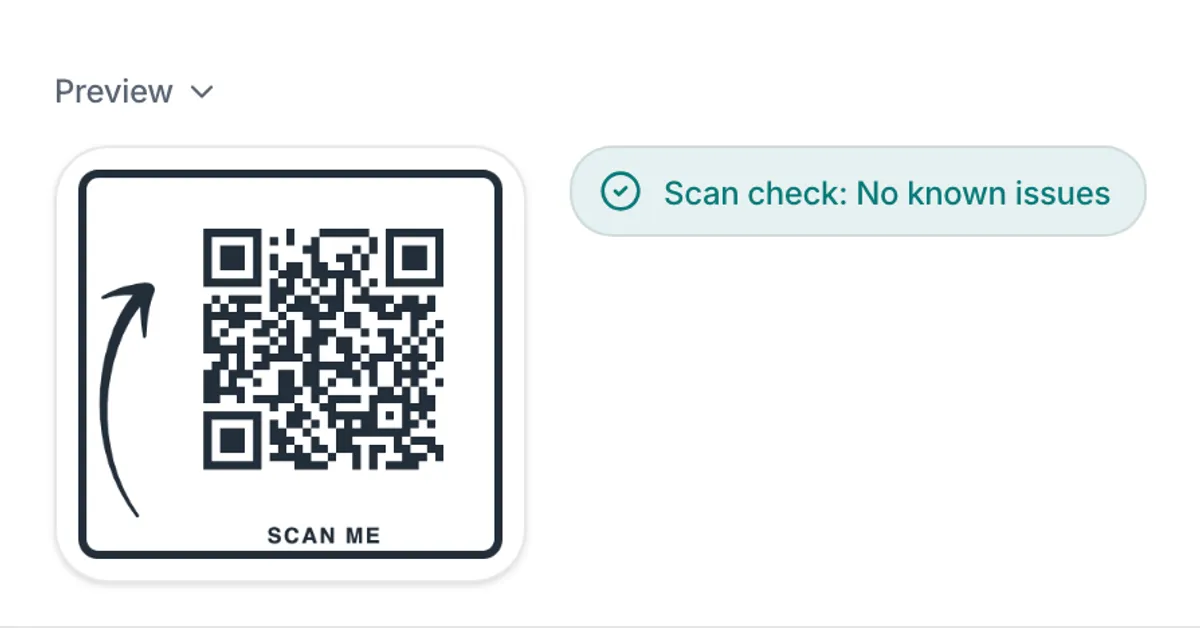
A caption that is not a link prints in capitals, which stays readable at small sizes. A link keeps its exact letters, because the address only works with them.
A scan check before you print
The panel checks your design while you work. It looks at the things that stop a code scanning: whether the two colours are different enough, whether the blank border around the code is wide enough, whether a logo has grown too big, and whether the file is sharp enough to print.
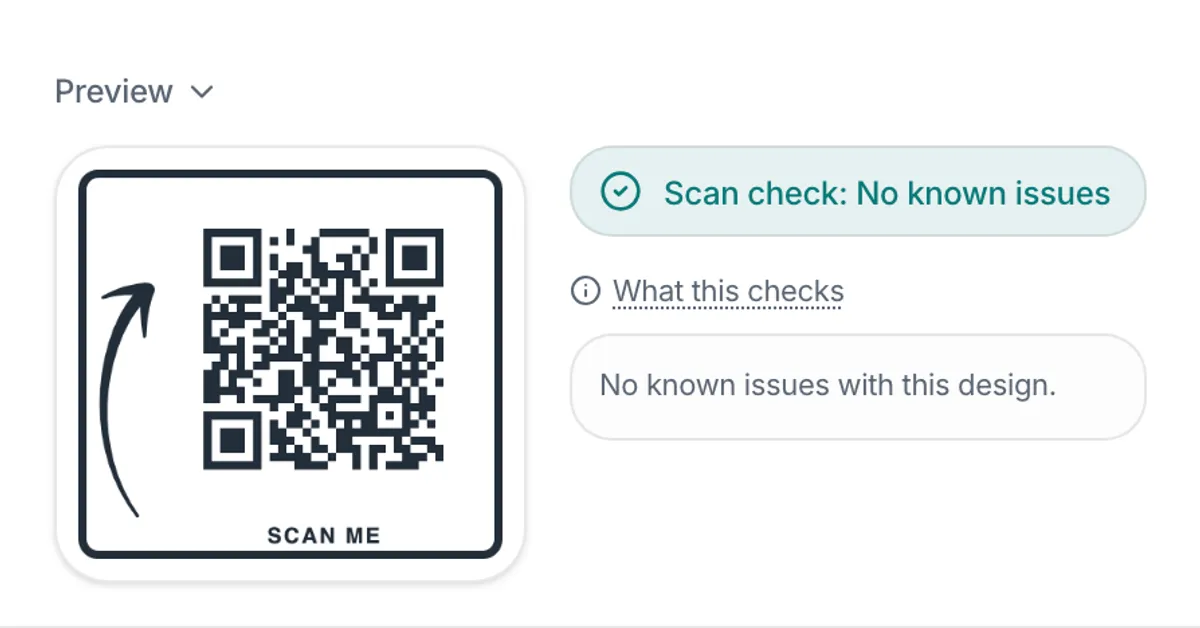
A clean design says No known issues. A risky one says what to change, and most warnings come with a one-click fix. A clean result means we found no known problems; we cannot promise every phone will read every code. If the print run matters, test one copy first.
Your saved designs stay as they are
Nothing about existing codes changed in this update. Every design you have saved exports exactly as before, and every link keeps working as it always did. On the dashboard the panel works on a draft copy, so a look around costs nothing: close it and the saved design is untouched. New codes start with a clean all-square look that scans broadly.
Try the new panelFree, no sign-up, no watermark. Type a link and the panel is one click away.